What contacts are for
A contact is anyone your business does transactions with. Customers, vendors, employees, lenders, anyone outside your company who appears in a transaction.
You attach a contact to most transactions so you can later answer questions like:
- How much revenue did I get from each customer this year?
- How much did I pay each vendor?
- Who am I owed money by? (Outstanding receivables.)
- Who do I owe money to? (Outstanding payables.)
Without contacts, the books are anonymous. With them, you can drill into any number and see who.
How to create a contact
Two ways:
From the Contacts page
- Click Admin in the sidebar
- Click the Contacts tab
- Click New Contact
- Fill in the form
- Save
On the fly during a transaction
Inside the New Transaction modal, the contact picker has an + Add new contact option at the bottom. Click it, fill in the new contact's details inline, save, and the new contact is selected for the transaction without ever leaving the form.
This is faster when you're entering a transaction with a customer who isn't in the system yet.
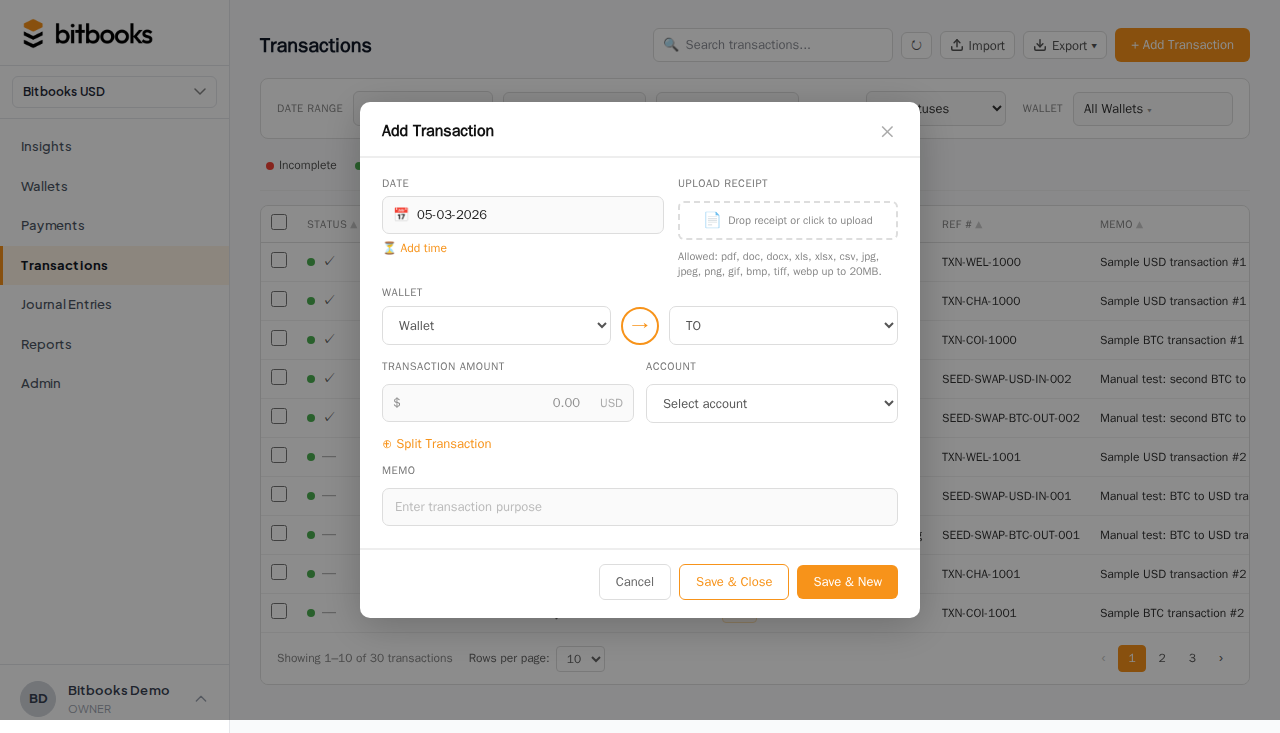
The contact form
Fields:
| Field | Required? | Notes |
|---|---|---|
| Name | Yes | Their business name or personal name |
| Kind | Yes | Customer / Vendor / Employee / Other (see Customers, Vendors, Employees, Other) |
| No | Used for sending invoices and notifications | |
| Phone | No | Reference, not auto-dialed |
| Street address | No | For invoices and tax reporting |
| City, state, country, zip | No | Same |
| Nostr public key | No | If they have one (Bitcoin businesses use this) |
The Name + Kind combination must be unique within an organization. You can have a "Acme Corp" customer and an "Acme Corp" vendor (different kinds). You can't have two "Acme Corp" customers.
Linking contacts to transactions
When you create a transaction (Simple Mode or Advanced Mode), one of the fields is Contact. Type to search; pick from the dropdown.
For one-off cash sales where the individual customer isn't tracked, use a generic contact like "Cash Customer" or "Walk-in Customer." Many businesses create one or two of these and reuse them.
For recurring vendors (your landlord, your software providers), creating proper contacts is worth it: every transaction with them becomes searchable, and a "Spend by Vendor" view becomes useful.
Managing contacts
The Contacts page (Admin → Contacts) lists every contact:
- Name
- Kind
- Email and phone
- Address summary
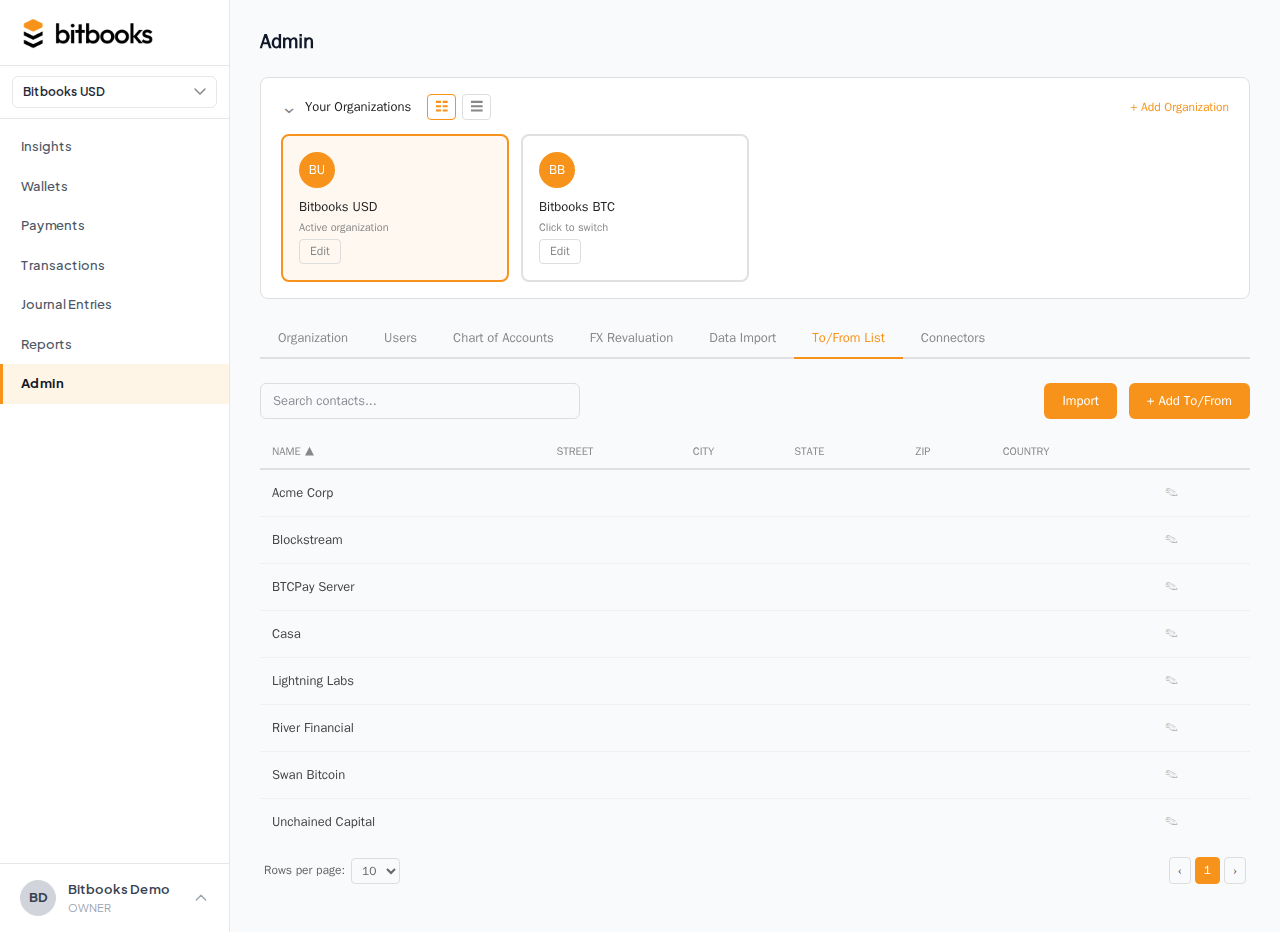
You can:
- Click a contact to view detail and recent transactions
- Edit any field
- Archive (don't delete) when you no longer want them appearing in dropdowns
- Filter by kind (just customers, just vendors)
Searching for transactions by contact
Two ways:
From the contact's detail page
Open the contact. The detail page shows their recent transactions automatically.
From the Transactions page
Use the contact filter on the Transactions page to show only entries linked to a specific contact.
From the General Ledger
Filter the GL by contact. Useful when you want detailed accounting (debits and credits) per contact.
Bulk import
If you're migrating from another tool, you can import contacts in bulk:
- From QuickBooks: the QuickBooks importer brings over contacts as part of the migration
- From CSV: upload a CSV with name, kind, email, phone, address. BitBooks creates contacts from the rows.
For one-time setup, bulk import is much faster than creating one at a time.
See Importing Contacts from QuickBooks.
Archiving a contact
If you stop doing business with someone (a former customer, a closed vendor relationship):
- Open the contact
- Click Archive
Archived contacts:
- Disappear from the Contacts list (toggle "Show archived" to see them)
- Don't appear in dropdowns when creating new transactions
- Keep their historical transactions linked (no data loss)
- Can be restored
Don't delete contacts. Always archive. Deletion would orphan past transactions.
Contact-related fields on transactions
Some transactions have additional contact-related fields:
- To/From address. A Bitcoin address or wallet identifier where the transaction went or came from. Distinct from the contact themselves.
- Reference number. Your internal reference, often an invoice number or order number.
- Memo. Free text. Anything that helps identify the transaction later.
The contact field is the "who." The other fields are the "what" and "when" specifics.
A worked example
A new vendor named "Acme Lightning Hosting" sends you a $500 monthly bill.
Setup:
- Create the contact: name "Acme Lightning Hosting," kind "Vendor," email "billing@acmelightning.com"
Each month:
- Create a new Transaction in Simple Mode
- Wallet: Company Credit Card
- Direction: Money out
- Amount: $500
- Contact: Acme Lightning Hosting (autocompletes from the dropdown)
- Category: Software Subscriptions
- Memo: Invoice number from their bill
- Save and post
Year-end:
- Open Acme Lightning Hosting's contact page
- See all 12 monthly transactions, totaling $6,000
Or run the General Ledger filtered by Acme Lightning Hosting and you have the same view.
Common questions
"Do I need to create a contact for every transaction?"
Not strictly. The contact field is optional. But:
- For revenue, contacts let you analyze customer concentration ("Are 80% of my sales from one customer?")
- For expenses, contacts let you analyze vendor spend
- For tax season, contacts make it easier to issue 1099s (in jurisdictions where that applies)
The investment to set up contacts pays off in clarity. Most teams use them for any recurring counterparty and skip them for one-off cash transactions.
"Can a contact be both a customer and a vendor?"
Yes, but they'd be two separate contacts (one with kind=Customer, one with kind=Vendor). The Contact form treats Kind as distinguishing.
"What if I get a customer's name wrong?"
Edit the contact (Admin → Contacts → click → Edit → save). The new name applies everywhere they're referenced. Past transactions automatically show the updated name.
Where to go next
- Customers, Vendors, Employees, Other for the kind distinctions
- Linking Contacts to Transactions for the transaction-side mechanics
- Importing Contacts from QuickBooks for migration
- Creating a Transaction (Simple Mode) for the standard transaction flow