When you'd bulk post
You don't post Drafts one at a time when you have many. Common situations:
- A wallet auto-synced and dropped 50 new Drafts into Transactions
- You imported a CSV bank statement that produced 30 Drafts
- You imported from QuickBooks and have hundreds of historical Drafts to commit
- Month-end cleanup: review and post anything still sitting as Draft
Bulk posting takes one click instead of 30 or 100.
How to bulk post on Transactions
- Click Transactions in the left sidebar
- Filter to the Drafts you want to post (use the filter bar: status = Draft, plus any wallet or date filters)
- Tick the checkbox at the start of each row you want to post
- Or tick the header checkbox to select all visible rows
- Click Bulk Post at the top of the table
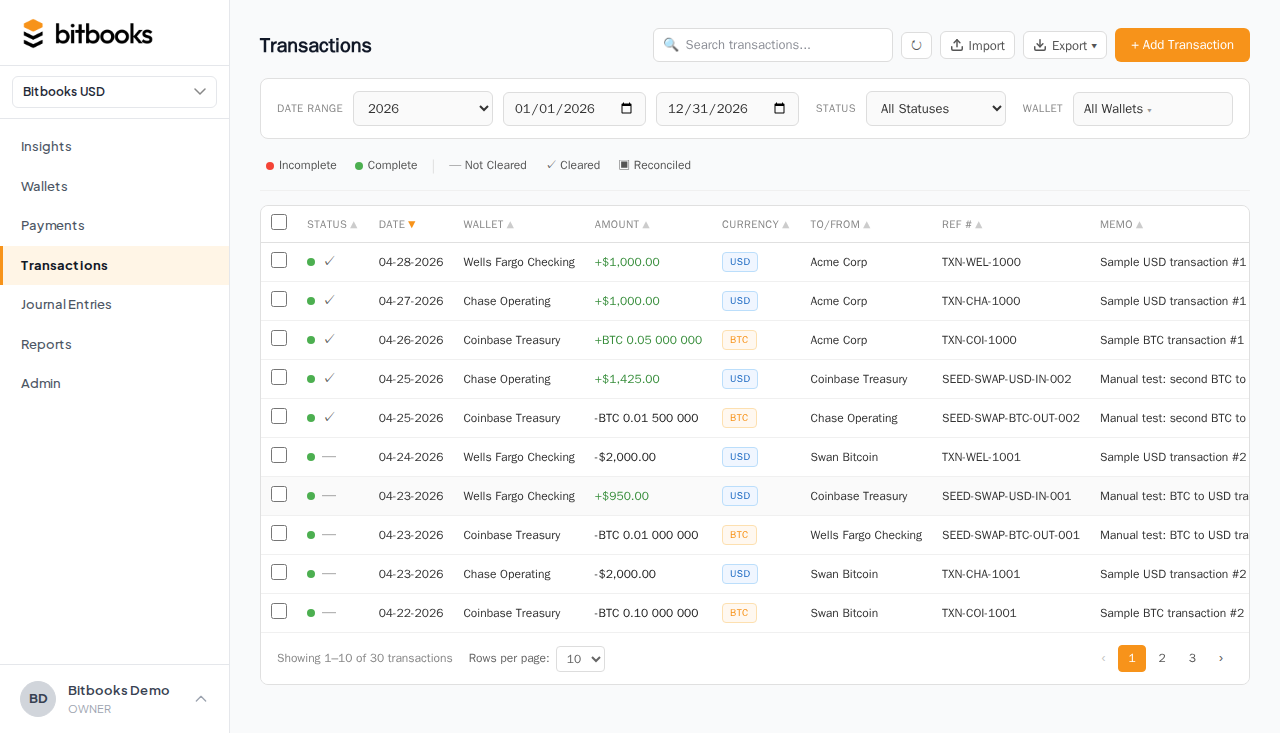
BitBooks runs through the selected rows and posts each one. The status changes from Draft to Posted on each. The page refreshes to show the new state.
How to bulk post on Journal Entries
Same flow on the Journal Entries page:
- Journal Entries in the sidebar
- Filter or search to the Drafts you want
- Tick rows
- Click Bulk Post
What can prevent a bulk post from succeeding
A few reasons a row might not post during a bulk run:
- Unbalanced. A journal entry whose debits don't equal credits can't post. Fix and retry.
- Missing required fields. A transaction without a wallet, amount, or category can't post. Open the Draft and complete it.
- In a locked period. If the entry's date is in a closed period (before the Journal Lock Date), posting fails. Either change the date to current period or unlock the period briefly.
- Pending exchange rates. If an entry needs a rate that hasn't been fetched yet, it'll be skipped. Use Retry pending rates at the top of the page to refetch.
When some rows fail, the bulk post completes the rest. You see a summary: "X of Y posted successfully. Z failed." Click into the failed ones to see why.
Reviewing before bulk posting
For a stack of auto-imported Drafts, the typical workflow:
- Sort by date (oldest first or newest first)
- Filter by wallet (one wallet at a time is easier to mentally batch)
- Skim each row: amount looks right, date looks right
- For each row, set the contact and category if blank
- Once a row is "ready" (all fields filled, looks correct), tick it
- After ticking everything you've reviewed, click Bulk Post
Don't bulk post 50 Drafts you haven't looked at. The whole point of Drafts is review-before-commit. Use the bulk action AFTER review, not as a substitute for it.
Bulk operations on Posted entries
A separate set of bulk operations applies to already-Posted entries. Most common:
- Bulk reverse. Tick rows, click Reverse. BitBooks creates reversing entries for each.
This is rare. You're more likely to reverse one bad entry at a time. But if a whole batch of imports turned out wrong (e.g., the wrong wallet, wrong period), bulk reversing can save you 50 clicks.
Filtering tips for bulk operations
The Transactions filter bar supports:
- Status: Draft, Posted, Approved, Reversed, etc.
- Wallet: one wallet or all
- Date range: any range
- Contact: one contact or all
- Category (account): one or all
- Direction: money in / money out
- Cleared status: Not Cleared / Cleared / Reconciled
Combine to narrow down. "All Drafts in the Blink wallet from the last 30 days" gets you exactly what you want before the bulk post.
A worked example
You connected Blink for the first time. The initial sync pulls 600 Lightning transactions from the past 12 months as Drafts.
Manual approach: review and post each one, taking maybe 30 seconds per Draft. That's 5 hours.
Bulk approach:
- Filter Transactions to: status = Draft, wallet = Blink Lightning Hot, last 12 months
- Skim through. Most are easy categorization (small Lightning sales, all should go to Sales: Coffee or similar).
- Use a default contact ("Cash Customer") for all walk-in customers
- For the unusual ones (refunds, larger amounts), open and categorize individually
- After tagging the Sales ones with their category, select all of them, click Bulk Post
- Repeat for the unusual ones (a smaller batch)
Total time: maybe 1-2 hours for 600 Drafts.
Common questions
"Can I bulk-edit Drafts (e.g., set the same category on 50 rows at once)?"
Not in the current UI. The workaround: tick the rows, do them one at a time but quickly. Bulk-edit is on the roadmap.
"What happens if I bulk post 50 entries and the system crashes halfway?"
Each post is its own request. The ones that succeeded stay Posted. The ones that hadn't been processed yet stay as Drafts. Re-run bulk post on the remaining Drafts.
"Can I bulk archive Drafts I don't want?"
Yes (delete, not archive, since Drafts can be deleted). Tick the rows, click Bulk Delete. Use carefully; deletion is permanent.
Where to go next
- Draft vs Posted for what these statuses mean
- Reversing a Posted Entry for undoing a posted entry
- How Auto-Sync Works for where auto-imported Drafts come from
- Importing Bank Statements for CSV-imported Drafts