When to create a new account
Create a custom account when:
- You need a level of detail the default chart doesn't have (separate "Lightning Sales" from "On-Chain Sales")
- Your business has unusual categories (a mining operation needs "Mining Equipment Depreciation" and "Mining Electricity")
- You're tracking a new revenue stream or expense category
- Your accountant asked for it
Don't create a new account when an existing one would work. The chart should be useful, not exhaustive. Most small businesses run fine with 30 to 80 accounts total.
How to create one
- Click Admin in the sidebar
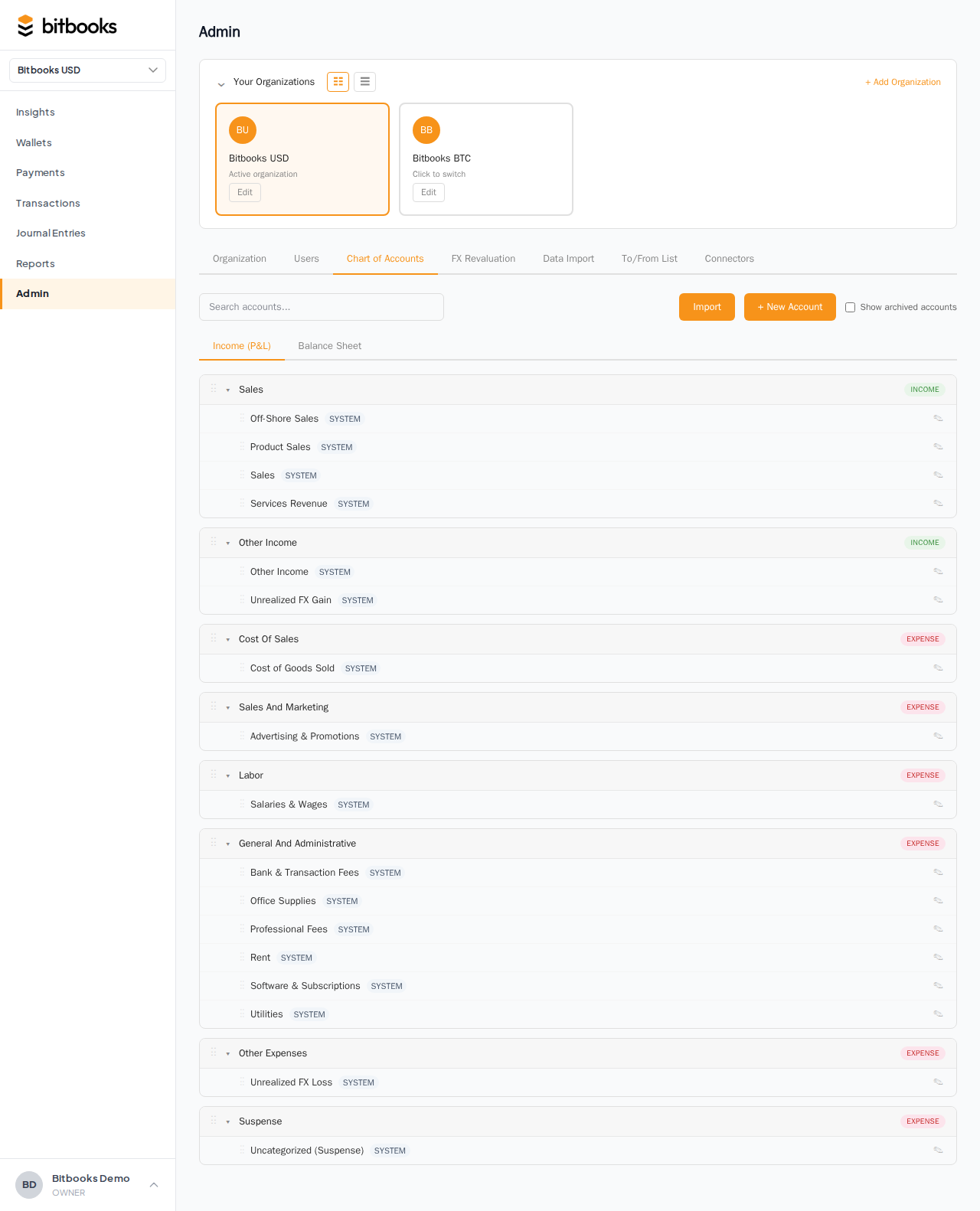
- Click the Chart of Accounts tab
- Click New Account at the top of the table
- Fill in the form
The fields
Name (required)
What you and your team will call this account. Use a clear, specific name. Bad: "Misc." Good: "Lightning Network Fees."
Names must be unique within an organization. You can't have two accounts both named "Marketing."
Type (required)
Pick one of: Asset, Liability, Equity, Income, Expense.
This decides which financial statement the account appears on. See Account Types Explained.
Sub-type (required)
Pick one of the sub-types available for the type you selected. The sub-type decides where on the report the account appears. See Account Sub-Types.
Code (optional)
A numeric code if you want one. Convention: 1xxx for assets, 2xxx for liabilities, 3xxx for equity, 4xxx for income, 5xxx-8xxx for expenses. See Account Codes and Numbering.
If you leave it blank, the account just sorts by name. Most users use codes once they get used to them.
Description (optional)
A note about what this account is for. Helpful when other team members might be unsure whether to use this account or a different one. Example for "Software Subscriptions: Bitcoin Tools": "Use for Bitcoin-specific software like node hosting, Lightning tools. Generic SaaS goes to General Software Subscriptions."
Currency (optional)
Some accounts are inherently in a single currency. A "BTC Hot Wallet" is BTC. A "EUR Bank Account" is EUR. Set this for clarity.
For most accounts (Sales, Rent, etc.), leave it blank. The account isn't currency-specific; transactions in any currency can post to it.
Parent account (optional)
You can nest accounts under a parent. Useful for grouping. For example, you might have a parent "Marketing" with children "Marketing: Paid Ads," "Marketing: Conferences," "Marketing: Content." On reports, child amounts roll up under the parent.
Leave parent blank for top-level accounts. Most accounts are top-level; nesting is a power feature.
FX Revaluation Override (optional)
Most accounts behave naturally when you run an FX revaluation. The override is for unusual cases where you want to force an account to be treated as monetary, non-monetary, or excluded entirely. Almost always leave this blank.
If your accountant tells you to set this, set it. Otherwise ignore.
After saving
The new account is immediately available:
- In the dropdown when you create transactions
- In journal entry forms
- In reports (it'll appear if it has activity)
- In the Chart of Accounts list
Until it has activity, it has a $0 balance and won't show on reports.
Editing an existing account
- Admin → Chart of Accounts
- Click the account row
- Edit any field
- Save
You can change name, code, description, parent, currency. You can change sub-type within the same type. You cannot change the type itself once created (because that would re-classify all the historical transactions).
If you really need to change the type, archive the wrong-typed account and create a new correctly-typed one. Talk to support if you have history to migrate.
Archiving (the right way to remove)
Don't delete accounts. Archive them.
- Click the account in the Chart of Accounts table
- Click Archive
Archived accounts:
- Don't appear in dropdowns when creating new transactions
- Don't appear in default report views
- Still preserve their historical transactions (so reports for past periods still work)
- Can be restored if you change your mind
You can see archived accounts by toggling "Show archived" on the Chart of Accounts page.
What you can't archive
- System accounts. A few accounts are required for BitBooks to function (Suspense, Retained Earnings, etc.). They can't be archived. The Archive button is disabled.
- Wallet accounts that are still active. If a wallet is still being used (transactions posting to it), you can't archive its account. Archive the wallet first; the account follows.
Common account-creation patterns
Bitcoin business
Income:
  Sales: Lightning
  Sales: On-Chain
  Sales: Stablecoin
  Sales: Fiat
  Tips Received
  Mining Income
  Other Income

Expenses:
  Cost of Sales: Bitcoin (for businesses where BTC is inventory)
  Lightning Network Fees
  On-Chain Network Fees
  Mining Electricity
  Mining Equipment Maintenance

Assets:
  BTC Hot Wallet (one per wallet)
  BTC Cold Storage (one per cold wallet)
  Lightning Inbound Liquidity Reserve
Service business
Income:
  Service Revenue: Consulting
  Service Revenue: Implementation
  Service Revenue: Support

Expenses:
  Subcontractor Fees
  Software: CRM
  Software: Project Management
  Travel: Client Meetings
Retail/e-commerce
Income:
  Sales: Storefront
  Sales: Online
  Sales: Bitcoin

Expenses:
  Cost of Goods Sold
  Marketplace Fees (Stripe, Shopify, etc.)
  Bitcoin Network Fees
  Shipping & Handling
Pick the structure that matches how you actually run your business. Don't over-engineer.
Where to go next
- What is the Chart of Accounts? for the foundation
- Account Types Explained for the type meanings
- Account Sub-Types for the next layer of organization
- Account Codes and Numbering for the optional numeric convention