What "Advanced Mode" gives you
The Journal Entries page is the accountant's view. Instead of filling in a friendly form ("which wallet, how much, what was it for?"), you write the underlying journal entry directly: which accounts to debit, which accounts to credit, in which currencies, for what amounts.
Anything you can do in Simple Mode you can do in Advanced Mode. The reverse isn't true. Advanced Mode is more expressive:
- Multi-line entries that touch 3, 4, or 10 accounts
- No-wallet entries like depreciation, accruals, prepaid expenses
- Foreign currency entries with explicit exchange rates
- Reversing entries done by hand (rather than the automatic reversal flow)
- Year-end closing entries
If you're an accountant or bookkeeper, this is your home.
When to use Advanced Mode
Use Advanced Mode for:
- Adjustments at month-end or year-end (depreciation, accruals, prepaid amortization)
- Closing entries (rolling P&L into Retained Earnings)
- Entries that touch only equity accounts (owner contributions, dividends)
- Anything where neither side is a wallet
- Entries where you need to manually pin an exchange rate
- Complex multi-line entries that don't fit Simple Mode's shape
For everyday transactions, use Simple Mode. It's faster and harder to mess up.
Step by step
Step 1. Open the Journal Entries page
Click Journal Entries in the left sidebar.
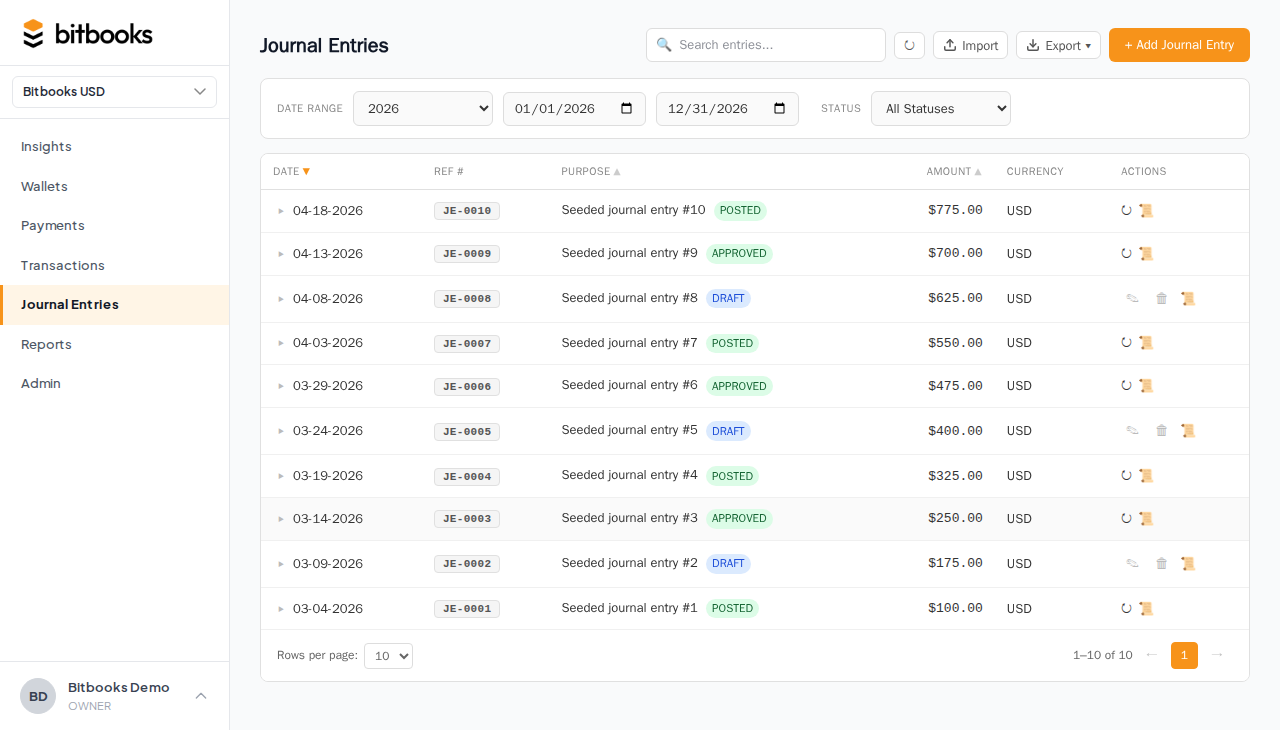
You'll see a table of past journal entries. Each row shows: reference number, date, currency, memo, status, debit total, credit total. To create a new entry, click New Journal Entry at the top right.
Step 2. Fill in the header
| Field | What it means |
|---|---|
| Date | When the entry takes effect |
| Currency | The native currency for the entry's amounts |
| Reference number | Auto-generated (JE-000142, etc.). Editable if you have an external reference |
| Memo | Free text describing the purpose |
The currency you pick here is the currency the entry's amounts will be entered in. You can have lines in multiple currencies (more on that below) but the header currency is the default.
Step 3. Add lines
A journal entry has 2 or more lines. Each line either debits or credits an account.
For each line:
| Field | What to put |
|---|---|
| Account | The chart of accounts entry this line affects |
| Debit | An amount, if this is a debit line |
| Credit | An amount, if this is a credit line |
| Currency | The currency for this line (defaults to header currency) |
| Memo | Optional per-line memo |
| Contact | Optional per-line contact |
Click + Add Line to add more rows.
Step 4. Make sure debits = credits
The bottom of the form shows running totals: Total Debits and Total Credits. They must be equal before you can post.
If they're not equal, BitBooks will block posting until you fix it. The form turns the difference red so it's easy to spot.
Step 5. Save
Same options as Simple Mode:
- Save: keeps as Draft
- Save and post: commits to the books
- Save and new: saves and opens a fresh form
If your books use approvals (a second person reviews each entry), the post action puts the entry into Posted status. Approval is then a separate action by another user.
A worked example: depreciation
At the end of the year, you need to record depreciation on a $5,000 piece of office equipment over 5 years. That's $1,000 per year, or $83.33 per month.
This isn't a transaction with a vendor. No money changes hands. It's an internal accounting entry. Simple Mode can't handle it, but Advanced Mode can:
| Account | Debit | Credit |
|---|---|---|
| Depreciation Expense | $83.33 | |
| Accumulated Depreciation: Office Equipment | $83.33 |
Memo: "December 2026 monthly depreciation, office equipment."
Both totals: $83.33. Balanced. Save and post.
What this does:
- The expense account goes up by $83.33 (the cost of the asset wearing out, recognized this month)
- The "accumulated depreciation" contra-account goes up by $83.33 (recording the running total of value lost over time)
- Office Equipment's net book value drops by $83.33
A worked example: owner contribution
The owner just put $10,000 of their own money into the business bank account.
| Account | Debit | Credit |
|---|---|---|
| Cash on Hand (the bank account) | $10,000 | |
| Owner's Capital | $10,000 |
Memo: "Initial founder contribution."
This isn't really a "transaction" in the customer-or-vendor sense. It's an equity event. Advanced Mode is the natural place for it.
Multi-currency entries
If you need a single entry that involves multiple currencies (e.g., recording a Bitcoin purchase that affects both your USD bank account and your BTC wallet), you can mix currencies on different lines.
For each line, pick the currency. BitBooks looks up the appropriate rate and computes the functional-currency value automatically.
The total-debits and total-credits check happens in your functional currency, not the line currencies. So a line of 0.1 BTC and a line of $9,000 USD might balance perfectly if 0.1 BTC happens to equal $9,000 at the entry's date.
When pinning the rate is up to you
By default BitBooks fetches the rate at the entry's date and uses that. If you want to override (e.g., you actually executed at a slightly different rate), you can:
- Click the rate next to a multi-currency line
- Enter the rate you actually used
- Save
The line stays in its native currency, but the conversion uses your manual rate. The override is recorded for audit.
Statuses (same as Simple Mode)
Journal entries follow the same lifecycle as transactions:
- Draft. Saved but not committed. Doesn't show on reports.
- Posted. Committed. Locked except for memo/attachments/contact.
- Approved. Posted and signed off (if your org uses approvals).
- Reversed. Was Posted, now cancelled out by a reversing entry.
See Draft vs Posted for the full explanation.
Editing rules
- Drafts: edit anything freely
- Posted: edit memo and attachments; everything else requires reversal
For correcting a wrong Posted entry, click Reverse on the entry. BitBooks creates an automatic reversing entry that exactly cancels the original. Then post a new correct entry. Both stay visible for the audit trail.
Bulk posting
If you have many Drafts to post (e.g., after a CSV import), you don't have to click into each one:
- On the Journal Entries page, tick the rows you want to post
- Click Bulk Post at the top of the table
BitBooks runs through them in order and posts each. If any fail (e.g., one is unbalanced), the others still post and you get a list of which failed.
Common questions
"Can I have a journal entry with no contact?"
Yes. Most internal entries (depreciation, closing, equity adjustments) have no contact. Leave it blank.
"Can I have a journal entry with negative amounts?"
No. Use a credit instead of a negative debit. The two are mathematically equivalent in double-entry bookkeeping; the credit form is the convention.
"Why can't I delete a Posted entry?"
To preserve the audit trail. Use Reverse instead. See Draft vs Posted for why.
"My entry is balanced but BitBooks won't let me post."
Check the functional currency totals at the bottom (not the line-currency totals). If you have lines in multiple currencies, the functional totals are what matter, and they might be off by a rounding cent due to rate conversion. Fix by adjusting one line by the rounding amount, or by setting an explicit rate that resolves the rounding.
Where to go next
- Creating a Transaction (Simple Mode) for everyday entries
- Reversing a Posted Entry for the formal correction flow
- Bulk Posting Drafts for month-end batch processing
- How Exchange Rates Work in BitBooks for the multi-currency mechanics
- Period Close for year-end procedures that often involve journal entries