Two ways to share data with your accountant
You can either:
- Invite them to BitBooks as a user with the Accountant role, so they can log in and work directly
- Export reports and send the files
Most accountants prefer (1) once they've used BitBooks once. The first-time accountant might want (2). Both work.
Option 1: invite them as a user
The clean approach for ongoing relationships.
- Admin → Users → Invite User
- Email: their email address
- Role: Accountant
- Send invite
They get a magic link, sign in, and have full books access. They can run any report, post adjusting journal entries, even close periods.
You don't have to export anything. They access the live data.
For external CPAs who do your monthly close, this is the standard setup.
Option 2: export reports and send
When the accountant doesn't want to log in (one-time tax filing, doesn't want another credential, etc.).
The standard package
For tax filing or a compliance review, send:
- Profit & Loss for the year PDF
- Balance Sheet as of year-end PDF
- Trial Balance as of year-end PDF
- General Ledger for the year Excel
- Cash Flow Statement for the year PDF
- Contact list: Excel
- Activity log for the year Excel (sometimes requested)
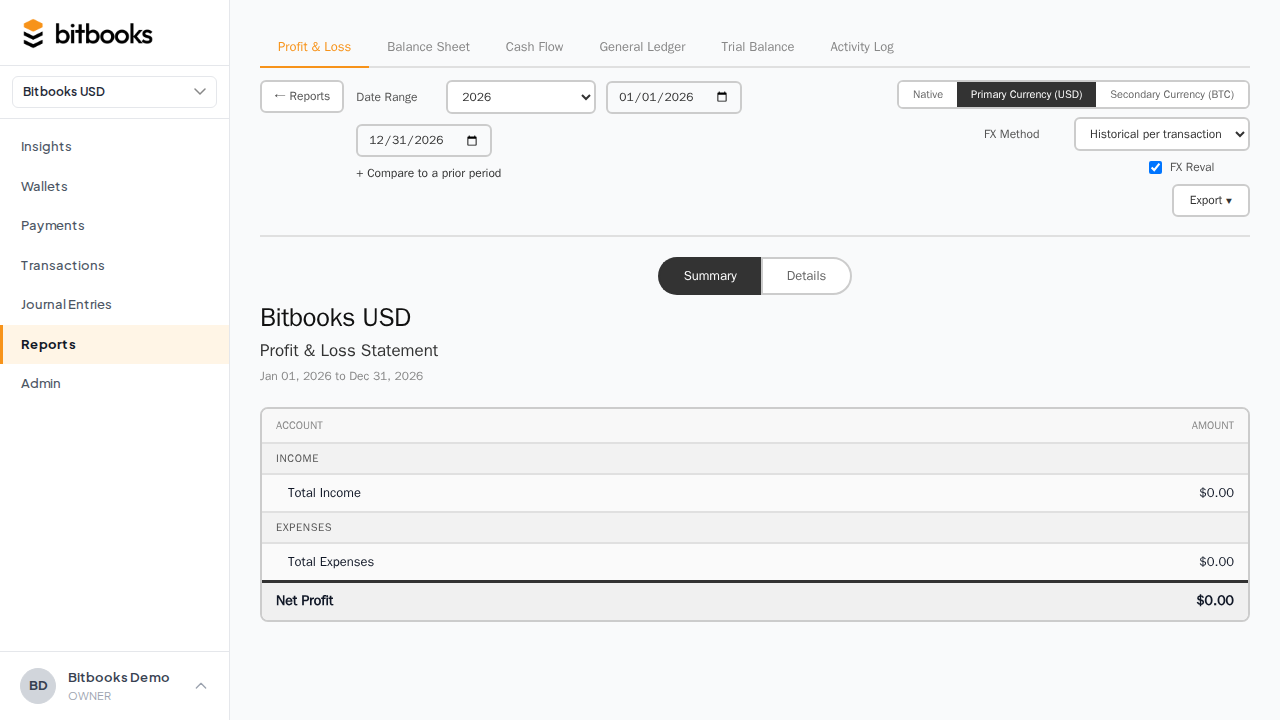
For each: Reports page, run the report, click Export, pick PDF or Excel, save the file.
Save them all in a folder named "BitBooks tax export 2026" (or similar) and send via your usual file-sharing mechanism (email, Drive link, Dropbox, secure file transfer).
Bitcoin-specific package
If your business has Bitcoin activity, also export:
- All BTC transactions for the year as Excel. Filter the General Ledger to Bitcoin-related accounts (each BTC wallet's account) and export.
- Bitcoin acquisitions (BTC purchases, mining income, sales received in BTC) with USD cost basis at acquisition
- Bitcoin disposals (BTC sales, BTC payments to vendors) with USD value at disposal
These let your preparer or a specialized crypto tax tool compute capital gains.
Multi-currency package
If you operate in multiple currencies:
- Reports in functional currency (your books' main currency)
- Reports in reporting currency (if you have one set, e.g., for stakeholders in a different country)
- Currency rate history (the rates BitBooks used during the year, available in the General Ledger detail)
Naming conventions
Make exports easy to identify. A useful pattern:
[Org name] - [Report] - [Period].xlsx

Examples:
Acme Coffee - P&L - 2026.pdf
Acme Coffee - General Ledger - 2026.xlsx
Acme Coffee - Balance Sheet - 2026-12-31.pdf
Your accountant doesn't have to guess what each file is.
What to do if the export looks wrong
If a report on screen looks fine but the export shows different numbers:
- Re-run the report (sometimes a stale cache)
- Confirm filters and date range match what's on screen
- Try a different format (PDF vs Excel)
- If still wrong, contact support before sending the wrong data
This is rare but possible. Don't send numbers you don't trust.
Sending securely
Financial data is sensitive. Some recommendations:
- Don't email PDFs unencrypted if the data is sensitive and the email isn't end-to-end encrypted. Use a file-share with link expiration instead (Drive, Dropbox).
- For very sensitive data (e.g., for a potential investor's diligence), consider a secure data room (DataRoomX, ShareFile, etc.).
- For day-to-day with a trusted accountant, email or shared Drive folder is normally fine.
After sending
Keep your own copy of what you sent. If the accountant comes back with questions ("the P&L shows $X for Software, what's that?"), you'll want to look at the same file they're looking at.
Save in a "Tax 2026" folder on your computer plus a cloud backup.
Common questions
"My accountant uses QuickBooks. Can I export in a QuickBooks-compatible format?"
Not directly. The Excel exports are generic; your accountant can manipulate them to fit their workflow. Some accountants will rebuild a QuickBooks file from the data; that's their work, not BitBooks' export.
"Can I schedule recurring exports (e.g., monthly P&L emailed to the accountant)?"
Not yet. Roadmap. For now, manual export at month-end.
"My accountant wants a 'general journal' export, not a 'general ledger.' What's the difference?"
A General Journal is chronological (every entry by date). A General Ledger is by-account (every entry under its account). BitBooks' General Ledger export can be sorted by date in Excel to approximate the journal view. If your accountant insists on a specific format, sort the Excel before sending.
"What about a Form 1099 for vendors?"
The data needed for 1099s (vendor payments, vendor names, addresses, EINs) is in your books. BitBooks doesn't auto-generate 1099 forms today. Your tax software (or your preparer) generates them from the vendor list and payment data. Roadmap: 1099 export.
Where to go next
- How BitBooks Supports Tax Reporting for the overall picture
- Preparing Your Books for Tax Season for the year-end checklist
- Capital Gains Tracking for Bitcoin Holdings for Bitcoin tax data
- Exporting Reports to PDF and Excel for the export mechanics