What auto-sync does
When you connect a wallet via Bitcoin Connections, BitBooks talks to the wallet provider's API on a schedule and pulls in any new transactions. You don't have to type them in.
Each new transaction lands in BitBooks as a Draft. You review, fix anything that needs fixing, then post.
That's the whole loop:
Wallet provider has new transactions
  -> BitBooks auto-sync runs
  -> New Drafts appear in Transactions
  -> You review and post
  -> Books reflect reality
When sync runs
- Every few hours, automatically, in the background
- On demand, when you click Sync Now on a wallet's detail page
- At connection setup, when you first connect a wallet (this can take a few minutes if there's a lot of history)
If you have just-in-time needs, click Sync Now. Otherwise the background schedule handles it.
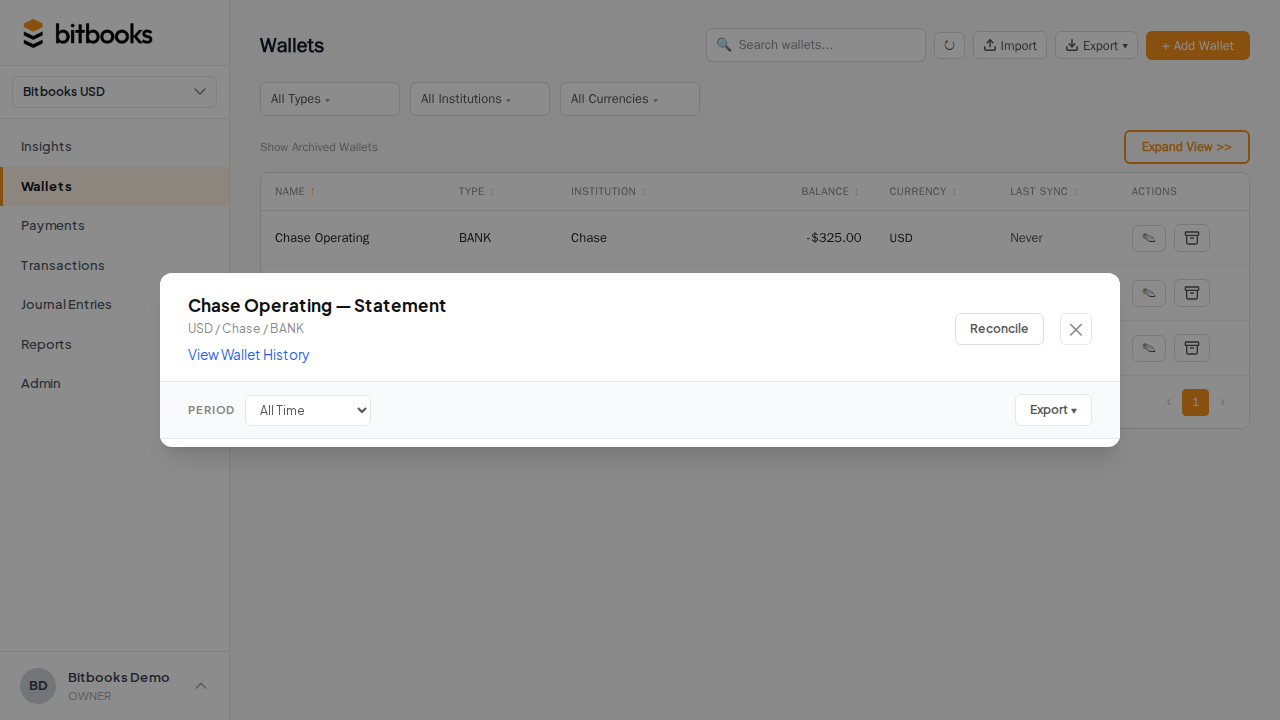
What sync brings in
For each new transaction at the provider:
- Amount in the wallet's currency
- Direction (in or out)
- Date and time
- Reference info (provider's transaction ID, on-chain txid if applicable, Lightning payment hash if applicable)
- The "to" or "from" identifier (when available, e.g., a Bitcoin address or counterparty)
- Fees (separately, for transactions that have a fee component)
What sync does NOT bring in:
- Contact identity. The provider rarely knows who paid you. The transaction lands with no contact, you fill it in.
- Category. The provider doesn't know your accounting category. Auto-imported transactions get a default "Suspense" or similar category and you re-categorize during review.
- Memo. No memo by default. You add context when reviewing.
The auto-sync gives you the skeleton. You add the meaning.
Why transactions land as Drafts
Auto-imports come in as Drafts (not Posted) for two reasons:
- The provider can be wrong. Reversed transactions, fee miscounts, partial settlement weirdness. Drafts let you catch and correct before they hit your books.
- Categorization needs you. Auto-import doesn't know whether a 12,500-sat receive is a coffee sale or a customer refund or your kid sending you a tip. You categorize.
Drafts don't show up on reports until you post. Your numbers stay clean.
What "Cleared status" means after auto-sync
Auto-imported transactions also have a Cleared status:
- Not cleared. Recorded, but the system hasn't confirmed it's settled at the provider.
- Cleared. Confirmed by the provider as settled.
- Reconciled. You've matched it during a formal reconciliation session.
For Bitcoin transactions, cleared usually corresponds to "confirmed on-chain" or "Lightning settled." For Lightning specifically, settled means the payment was finalized, not just routed.
The auto-sync sets the cleared status based on what the provider tells us. You can override during reconciliation.
Deduplication
If the auto-sync runs twice and tries to import the same transaction twice, it deduplicates by the provider's transaction ID. You won't get duplicates from sync collisions.
The catch: if you also recorded the same transaction by hand before the sync caught up, those won't dedupe (different IDs). You'll need to delete or reverse the manual one. See Transactions Showing Twice (Duplicates).
What happens if sync fails
A sync can fail for a few reasons:
- Provider downtime. Blink, Coinbase, etc. occasionally have outages
- Authentication expired. Your wallet provider rotated something and we need to re-auth
- Rate limits. The provider throttled us; we'll retry later
- Network glitches. Transient issues that resolve themselves
The wallet's sync status changes to Error. You'll see it on the Wallets page and on the wallet detail page.
The next scheduled sync will retry. If it persists, click Reconnect on the wallet to refresh credentials. See Bitcoin Connection Sync Stopped Working.
Stopping sync temporarily
If you want sync paused (e.g., you're doing a manual reconciliation and don't want new entries appearing):
Right now, the way to do this is to disconnect the wallet (Admin → Connectors → click wallet → Disconnect). The wallet stays in BitBooks with all its history. New transactions stop importing. When you're ready, reconnect.
A "pause sync" toggle without disconnecting is on the roadmap.
Multiple wallets at one provider
If you connect multiple wallets at the same provider (e.g., your Lightning hot wallet AND your on-chain wallet at Blink), each wallet has its own sync. They run independently.
You set up the vault password once at first connection. After that, every new wallet just asks for the existing password to unlock the safe.
See Connecting Your Bitcoin Wallet for the connection flow.
Security: what auto-sync can and cannot do
Auto-sync is read-only. It can:
- Read your transaction history
- Read your current balance
- Read wallet metadata (label, currency)
It cannot:
- Move Bitcoin out of your wallet
- Change wallet settings
- Sign transactions
- See your seed phrase or private keys
The credentials we use are scoped to read access only. Even if a malicious actor got into BitBooks, they couldn't drain your wallet through this connection.
Common questions
"How long does the first sync take?"
Depends on transaction history. A new wallet with 5 transactions: seconds. An exchange account with 5 years of trading history: 5-15 minutes. The wallet's status will be Syncing during the initial pull.
"What if I have a transaction at the provider but auto-sync didn't pick it up?"
Click Sync Now. If still missing after 10 minutes, contact support. Sometimes a specific transaction trips up the parser.
"Can I edit auto-imported transactions before posting?"
Yes. Click any Draft to edit fields, then post. Useful for adding the contact, fixing the category, attaching a receipt.
"Will sync re-import a transaction I deleted?"
If it was a Draft from auto-sync and you deleted it, the next sync will import it again (we don't remember what you deleted). Either reverse instead of delete, or fix at the provider.
Where to go next
- Connecting Your Bitcoin Wallet for the connection setup
- Disconnecting or Re-syncing for managing connections
- Bitcoin Connection Sync Stopped Working for sync error troubleshooting
- Transactions Showing Twice (Duplicates) for dedup issues