What "closing a month" means
You've recorded all your March transactions. You've reviewed everything. The numbers look right. Closing March means you formally lock the month so nothing can change anymore. Reports for March stay stable forever.
For the broader concept, see Period Close. This article is the step-by-step.
The pre-close checklist
Don't just set the lock date and walk away. Run through this list first:
1. All transactions for March are entered
- Open the Transactions and Journal Entries pages
- Filter to March, status = all
- Make sure no expected transactions are missing
- Double-check auto-syncs ran for connected wallets
For wallets you haven't connected, manually verify against the bank statement / wallet provider.
2. No leftover Drafts
Filter to March, status = Draft.
If there are Drafts:
- Real transactions you forgot to post. Review and post them.
- Auto-imported items you haven't reviewed. Review and post (or delete if not real).
- Half-finished entries you started and abandoned. Delete them.
You should have zero Drafts in March before closing. Drafts hidden in a closed period are confusing later.
3. All wallets reconciled
For each wallet:
- Open the wallet
- Click Reconcile (or Statement)
- Match against the wallet provider's March statement
- Tick reconciled, save
See Reconciling a Bitcoin Wallet and Reconciling a Fiat Bank Account.
If reconciliation reveals a discrepancy, fix it before closing. Don't close around an unresolved discrepancy.
4. Trial Balance is balanced
Run Reports → Trial Balance for March (or year-to-date through March 31).
Debits should equal credits at the bottom. If they're off, investigate before closing. See Trial Balance.
5. Month-end adjustments are entered
Common March-end adjustments:
- Depreciation for any owned assets
- Accruals for expenses incurred but not yet paid (e.g., a vendor invoice that arrived in April for March work)
- Prepaid expense amortization (you paid for an annual subscription in advance; this month's portion gets recognized)
- Inventory adjustment if you hold inventory
- FX revaluation if you hold foreign currency or Bitcoin and want to mark to current market
Most of these are entered in Advanced Mode (Journal Entries). Talk to your accountant about which ones apply to you.
6. P&L looks reasonable
Run Reports → Profit & Loss for March. Skim the numbers.
- Are revenue numbers in line with what you expect?
- Are expense categories roughly where they should be?
- Anything wildly different from previous months?
If something looks off, drill into it. A red flag now is easier to fix than a red flag after closing.
7. Balance Sheet looks reasonable
Run Reports → Balance Sheet as of March 31.
- Are wallet balances right? (You just reconciled, so they should be.)
- Are liabilities in line?
- Is equity changing in the direction you expect (growing if profitable)?
Same idea: spot check. If something is off, fix.
Set the lock date
Once you've gone through the checklist:
- Click Admin in the sidebar
- Stay on the Settings tab
- Find Journal Lock Date
- Set to March 31, 2026 (the last day of the period you're closing)
- Click Save
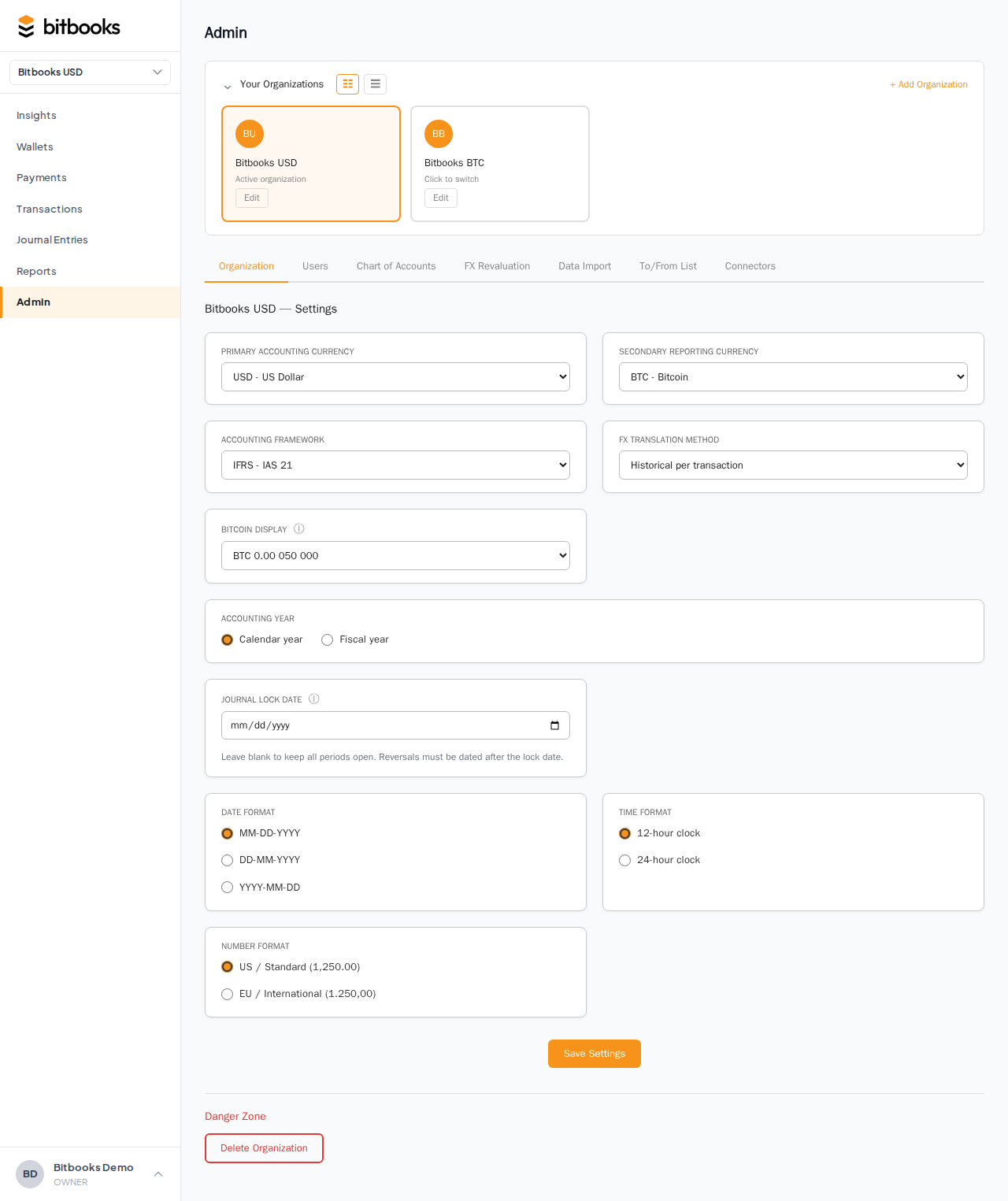
That's it. March is now closed. Trying to create or edit any entry dated March 31 or earlier produces an error.
After closing
A few things to do:
Send out the month-end reports
Whoever should see March's numbers gets the reports. Investors, board members, your accountant, your bank.
Export to PDF or Excel:
- P&L for March
- Balance Sheet as of March 31
- Cash Flow Statement for March (if needed)
These reports are now stable. Anyone reading them in May or June will see the same numbers.
Update your roadmap
Many teams use month-close as the moment to refresh their internal forecast or review variance against budget. Take 15 minutes to compare March actuals against what you'd predicted.
Start April fresh
April transactions can be entered normally. The lock date doesn't affect new entries.
When April ends, you'll repeat this process. The Lock Date will move from March 31 to April 30.
A streamlined monthly close template
After you've done it once, the routine looks like this:
1. Day 1-3 of next month:
   - Wait for prior month's auto-syncs to fully complete
   - Wait for the bank to send the prior month's statement

2. Day 3-5:
   - Run through the pre-close checklist (above)
   - Reconcile every wallet
   - Enter month-end adjustments
   - Verify Trial Balance and P&L

3. Day 5-7:
   - Set the Journal Lock Date
   - Export and send out reports
   - Brief variance review

4. Total time: 1-2 hours per month for a small business
Bookkeepers managing several clients do this in parallel: reconcile all clients on Day 3-5, close all clients on Day 5-7.
Common questions
"What if I close March, then realize I had an error?"
See Period Close section "What if I really need to fix something in a locked period?" Three options:
- Post a correcting entry in the current period (recommended)
- Use Reverse on the original (creates a reversing entry in the current period)
- Reopen March (rewrites history; use sparingly)
"How do I close a quarter or year, not just a month?"
Same Lock Date mechanism, different date. To close Q1 2026, set Lock Date to March 31. To close the year 2026, set to December 31. Each Lock Date covers everything before it.
You typically close every month, and the year-end close is just an extra-careful version of that month's close. There's no separate "close the year" button; it's the same lock date moved forward to December 31.
"What about the year-end Closing Entries that move P&L into Retained Earnings?"
Some accounting systems have an explicit "year-end closing" that journals income and expense balances to retained earnings. BitBooks doesn't require this; the P&L accounts effectively reset for reporting purposes at year-end automatically. If your accountant insists on explicit closing entries (some do), use Advanced Mode (Journal Entries) to post them, then set the Lock Date.
Where to go next
- Period Close for the broader concept
- Trial Balance for the books-health-check
- Reconciling a Bitcoin Wallet and Reconciling a Fiat Bank Account for reconciliation
- What Happens When a Period is Locked for the behavior after closing
- Reopening a Closed Period for the unlock procedure