The basic flow
Most transactions have a Contact field. When you create or edit a transaction (Simple Mode or Advanced Mode), you pick a contact from the dropdown.
Linking the contact:
- Saves the contact ID with the transaction
- Lets you later filter transactions by contact
- Lets you see "all transactions for this contact" from the contact's detail page
- Powers reports that segment by contact
For most transactions, picking the contact takes one click (the dropdown autocompletes from your contact list).
How the picker works
The contact field is a search-as-you-type dropdown:
- Click the field to open
- Start typing the contact's name
- The dropdown narrows to matches
- Click the right contact
If the contact doesn't exist yet, the dropdown shows + Add new contact at the bottom. Click it to create a new contact inline without leaving the transaction form.
When the contact field is optional
For some transactions, no contact is involved:
- Wallet-to-wallet transfers (it's between your own wallets, no third party)
- Closing entries (internal accounting only)
- Depreciation entries (internal, no party)
- FX revaluation entries (internal)
For these, leave the contact blank. BitBooks doesn't require it.
For all other transactions (sales, expenses, payments), the contact is technically optional but strongly recommended. A transaction without a contact loses the "who" detail.
Linking on Simple Mode (Transactions page)
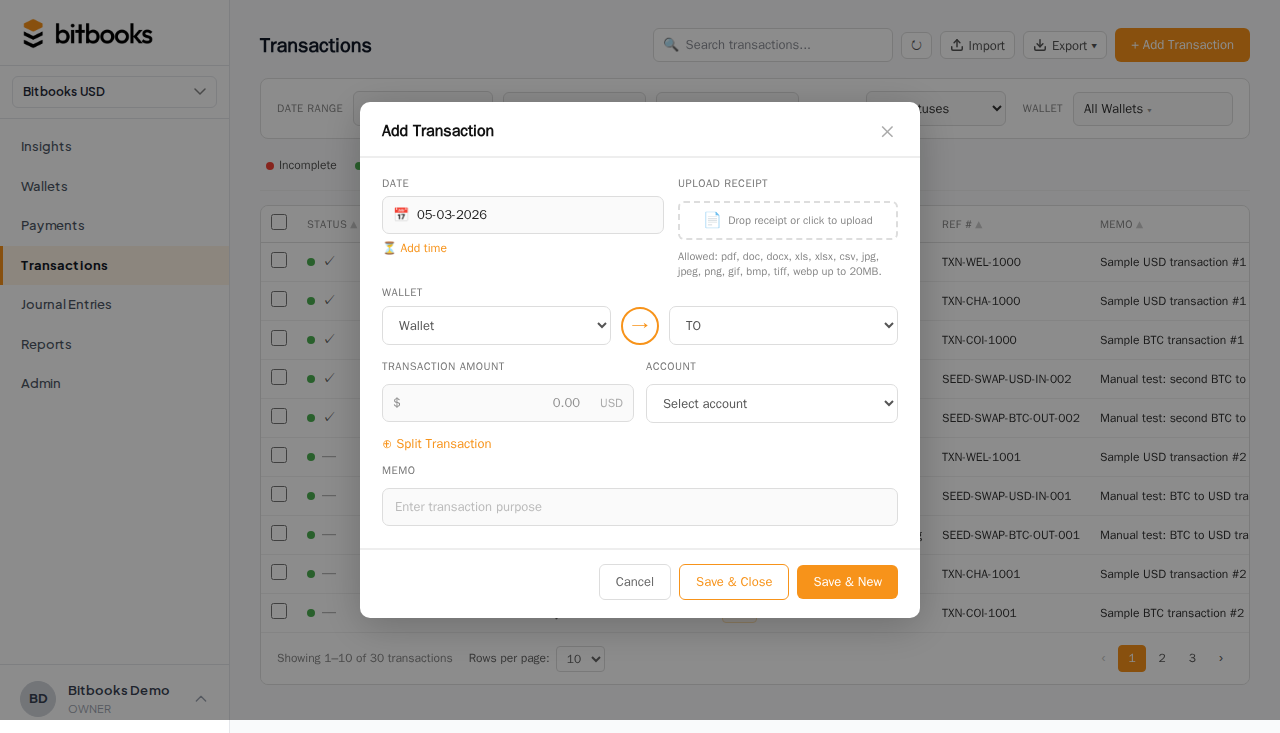
The New Transaction modal has a contact field. Same picker behavior.
For Standard mode (one wallet), one contact applies to the whole transaction.
For Split mode (one wallet, multiple line categories), one contact applies; you can't have different contacts per line in Split mode.
For Transfer mode (between your own wallets), the contact field is hidden (transfers don't have an external party).
Linking on Advanced Mode (Journal Entries)
In Advanced Mode, each line of a journal entry can have its own contact.
Most multi-line entries don't need this; one contact applies to all lines. But for some entries (e.g., a wire that paid two different vendors), per-line contacts make sense.
The journal entry header doesn't have a contact field; only the lines do. Reports that segment by contact use the line-level contact.
Linking on auto-imported transactions
When auto-sync imports transactions from a wallet provider, the Contact field is usually blank. Wallet providers rarely know who the counterparty is (a Lightning payment doesn't include "from John Smith"; it's just "5,000 sats came in").
You fill in the contact during the review-and-post step.
For high-volume Lightning operations where most receives are one-off retail customers, you'd typically use a generic contact (e.g., "Cash Customer") for all of them. You don't need to track individual coffee buyers.
For B2B Lightning payments where the counterparty matters, you'd identify them from the memo or invoice number and pick the proper contact.
Searching transactions by contact
Three places to find all transactions for a contact:
From the contact's detail page
Open Admin → Contacts → click the contact. The detail page lists their recent transactions automatically.
From the Transactions page
Use the contact filter in the filter bar. Pick a contact; the table shows only their transactions.
From the General Ledger
Filter the GL by contact. Useful when you want full accounting detail (debits and credits) for one party.
Changing a contact on a posted transaction
Posted transactions are mostly locked, but the contact field is one of the editable fields on a Posted transaction. You can re-link to a different contact without reversing.
Why? Contacts are metadata, not numbers. Changing the contact doesn't affect the financial impact of the transaction. So BitBooks allows it for clean-up purposes.
To change: open the transaction, click Edit, change the contact, save. The change is logged in the Activity Log.
Common patterns
Walk-in retail / coffee shop
Use a generic "Cash Customer" or "Walk-in Customer" for all sales. Don't try to track individual coffee buyers. The number of transactions per individual customer is too low to be useful.
For loyalty program members or B2B accounts, create proper contacts.
Consulting / freelance
Track each client as a Customer contact. Use the contact filter to bill correctly and to analyze customer concentration ("Are 70% of my fees from one client?").
E-commerce
For one-off online retail, generic "Online Customer" can suffice. For repeat customers or B2B accounts, individual contacts make sense.
B2B services
Always link contacts. Customer-by-customer revenue analysis is a key business metric.
Vendor relationships
Always link contacts for recurring vendors. "Spend by Vendor" is a key cost-management view.
Reports that use contact data
Today:
- Contact detail page shows recent transactions
- Transactions / Journal Entries pages support contact filtering
- General Ledger supports contact filtering
Soon (roadmap):
- A Sales by Customer report (revenue grouped by Customer contact)
- A Spend by Vendor report (expenses grouped by Vendor contact)
- A Customer aging report (outstanding receivables by customer)
- A Vendor aging report (outstanding payables by vendor)
These will become standard reports. For now, the GL with contact filter approximates them.
Common questions
"My auto-import showed up with no contact. Should I leave it blank or pick something generic?"
Pick something. Even a generic "Cash Customer" beats blank. Blank-contact transactions are harder to drill into later.
"What if I picked the wrong contact and the transaction is Posted?"
You can edit the contact on a Posted transaction (it's one of the editable metadata fields). Just open and change.
"Can a transaction have multiple contacts?"
Not directly on a single Standard transaction. In Split mode, no. In Advanced Mode (Journal Entries), yes: each line can have its own contact.
For complex cases where multiple parties are involved (a payment processed through an intermediary), use Advanced Mode with per-line contacts, or split the transaction across lines.
Where to go next
- Adding and Managing Contacts for create/edit
- Customers, Vendors, Employees, Other for the kind distinctions
- Importing Contacts from QuickBooks for migration
- General Ledger for transaction detail filtered by contact