Where team management lives
Everything is at Admin → Users.
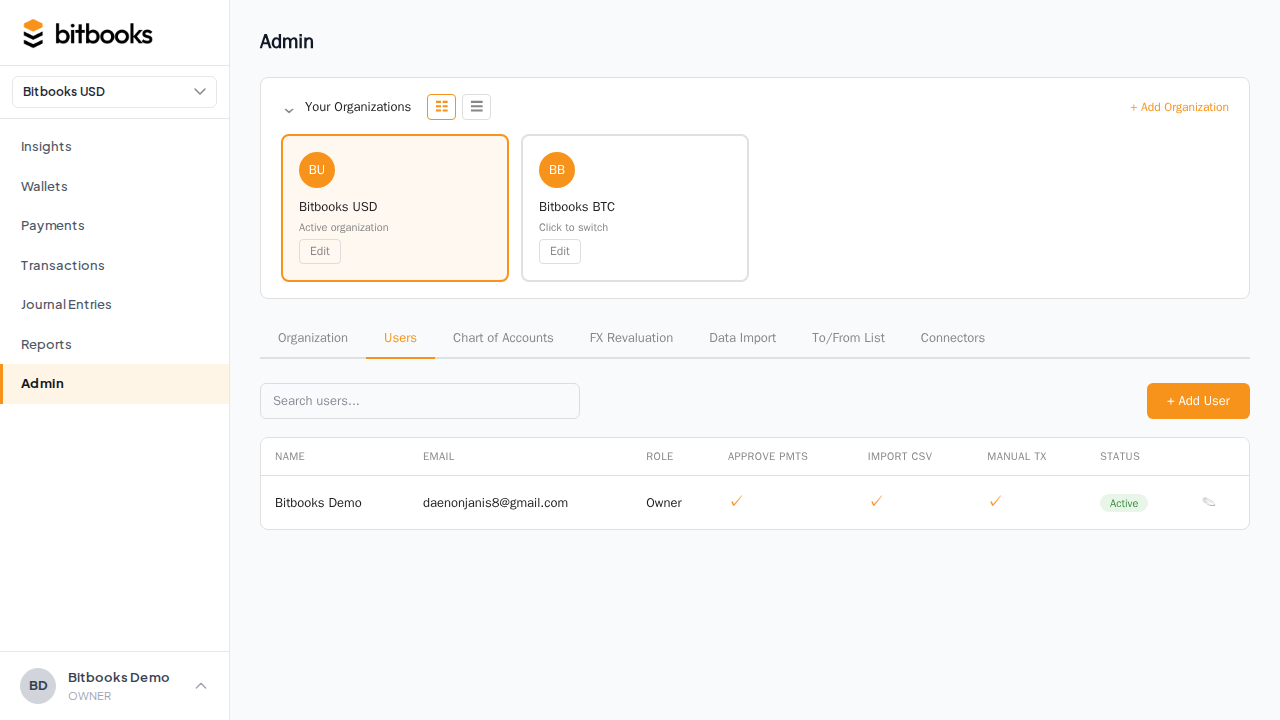
The page lists every user with access to the current organization, plus pending invitations.
Adding a user (invite)
See Inviting Team Members for the full walkthrough. The summary:
- Admin → Users → Invite User
- Enter email and role
- Send
The invitee receives a magic link, sets up their account, and they're in.
If they should access multiple organizations, you can tick Add to all my current organizations to invite them everywhere at once.
Changing a user's role
To promote, demote, or change role type:
- Admin → Users
- Click the user
- Change the role from the dropdown
- Save
The change applies on the user's next page load. If they're actively in BitBooks, the page they're on may show stale permissions briefly.
When changing roles:
- Promote when you trust them with more
- Demote when their responsibilities have shrunk or you want tighter controls
- Change kind (Member to Accountant) when their function has changed
Communicating ahead of time avoids surprise. "Hey Brandon, I'm bumping you up to Admin so you can change settings without going through me" goes a long way.
Removing a user
When someone leaves the company, ends a contract, or you want to revoke access:
- Admin → Users
- Click the user
- Click Remove
Confirm. The user's access to this organization ends immediately. They can no longer sign in or take any actions.
What stays:
- Their historical actions in the audit log (preserved with their name)
- Transactions they created (linked to them by user ID forever, for audit)
- Their account in any other organizations they belong to (only this org's access is revoked)
What's gone:
- Their ability to view or change anything in this organization
- Their notifications for this organization
If you accidentally remove someone, re-invite them. They'll get a fresh magic link.
Pending invitations
Invitations that haven't been accepted show as Pending on the Users page. From there you can:
- Resend (in case they didn't see the original email)
- Revoke (cancel an invitation that's no longer needed)
Pending invitations expire after a default period (typically 7 days). Expired ones can be resent.
Special cases
The Owner
There's one Owner per organization. To change who the Owner is:
- Promote another user to Admin first (so they have most permissions already)
- As the current Owner, click Transfer Ownership in the Users section
- Pick the new Owner
- Confirm
After transfer, you become Admin (or whatever role they pick for you), and the new Owner has Owner power. Useful when the founder is selling the business or stepping back.
Yourself
You can't remove yourself from your own organization (that would lock you out). To leave an org you don't own: have the Owner remove you. To "leave" an org you own: archive or delete it.
Suspended users
Some scenarios call for temporarily disabling a user without permanently removing (e.g., they're on extended leave). The current UI doesn't have a Suspend/Pause toggle; the workaround is:
- Change their role to Viewer (read-only access)
- When they return, change back
Or:
- Remove them
- Re-invite when they return
A formal Suspend feature is on the roadmap.
Common questions
"Can I see what each user has done?"
Yes, in the Activity Log. Filter by user. See Activity Log.
"Can I require 2FA before a user can sign in?"
Today: 2FA is per-user opt-in. You can encourage but not enforce. Org-wide 2FA enforcement is on the roadmap.
"What happens to a Draft transaction if the user who created it is removed?"
The Draft stays. The "created by" field still references the removed user (their name preserved in the audit trail). Other users can edit and post the Draft normally. The original creator just can't sign in anymore.
"My team is growing. How many users can I have?"
No hard cap. Practical limits depend on your subscription. For most growing businesses, plenty of room.
"Can a contractor have access for one specific project, then lose it?"
The cleanest path: invite, give a Member or Viewer role for the duration, remove when done. The audit log preserves their actions.
A worked example
A new bookkeeper joins your team. You want them to have day-to-day access but not be able to change settings.
- Admin → Users → Invite User
- Email: bookkeeper@example.com
- Role: Member
- Send invite
They get the email, sign up, are now a Member.
A month later, you decide to promote them to Accountant so they can post adjusting entries:
- Click their name on the Users page
- Change role from Member to Accountant
- Save
Done. They now have full books access.
Six months later, the contract ends:
- Click their name
- Click Remove
Their access ends. Their work in the audit log stays.
Where to go next
- Inviting Team Members for the full invite walkthrough
- User Roles for the role-by-role permissions
- Two-Factor Authentication for hardening sign-in
- Multiple Organizations for managing teams across orgs
- Activity Log for tracking what each user has done