When you'd have multiple organizations
Common cases:
- You run several businesses. Each is its own legal entity with its own books.
- You're a bookkeeper or accountant with several clients, each in their own org.
- A test or sandbox org plus a production org.
- Different geographic operations that need separate currency / tax handling.
Each organization in BitBooks is fully independent: its own wallets, contacts, transactions, journal entries, reports, settings, and team members.
Creating a new organization
- Click Admin in the sidebar
- Click the Organizations tab
- Click New Organization
- Fill in the wizard (same as the initial setup): name, currency, framework, etc.
- Save
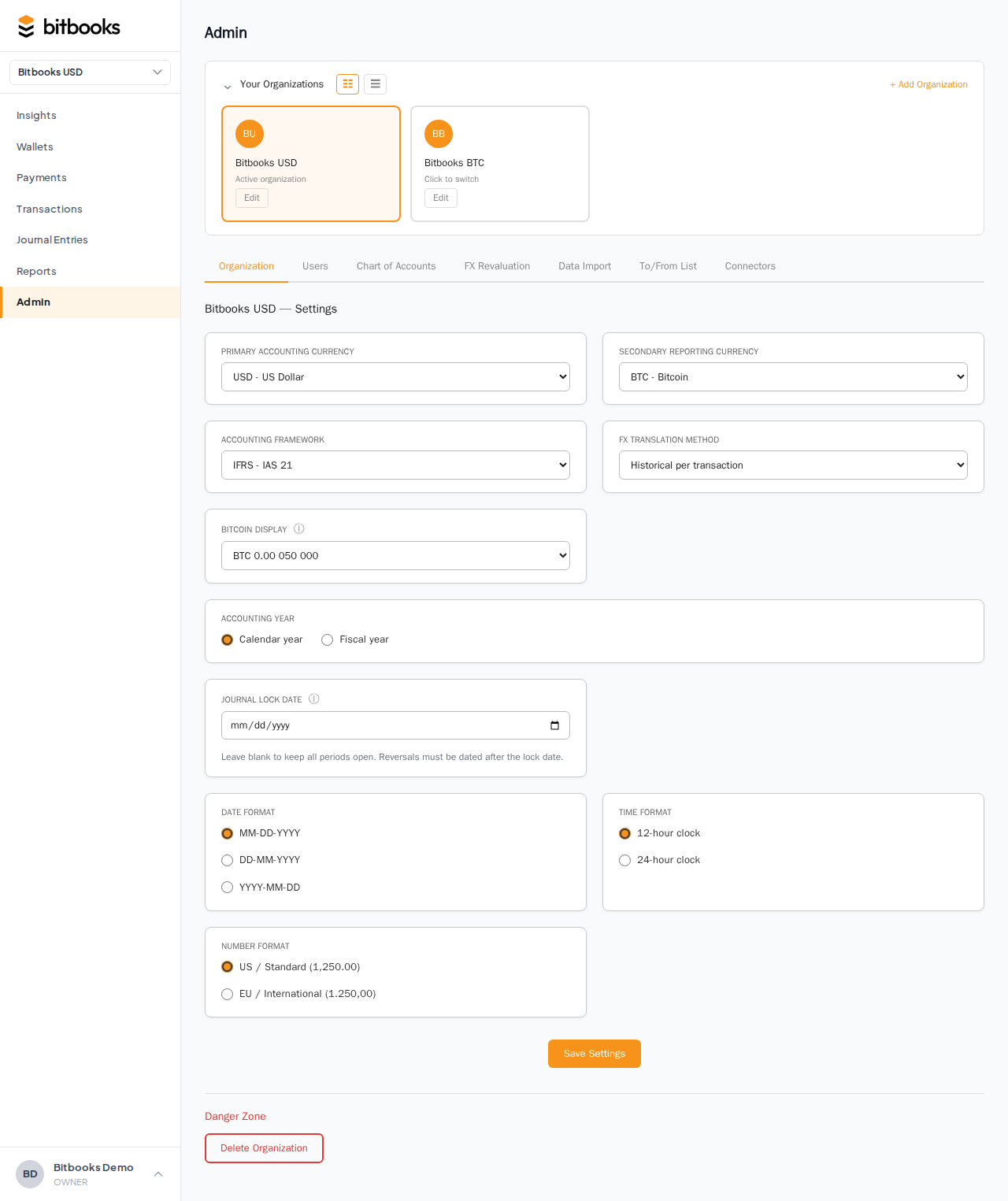
The new organization appears in your switcher dropdown. You're automatically the Owner.
Switching between organizations
The switcher is at the top of the sidebar:
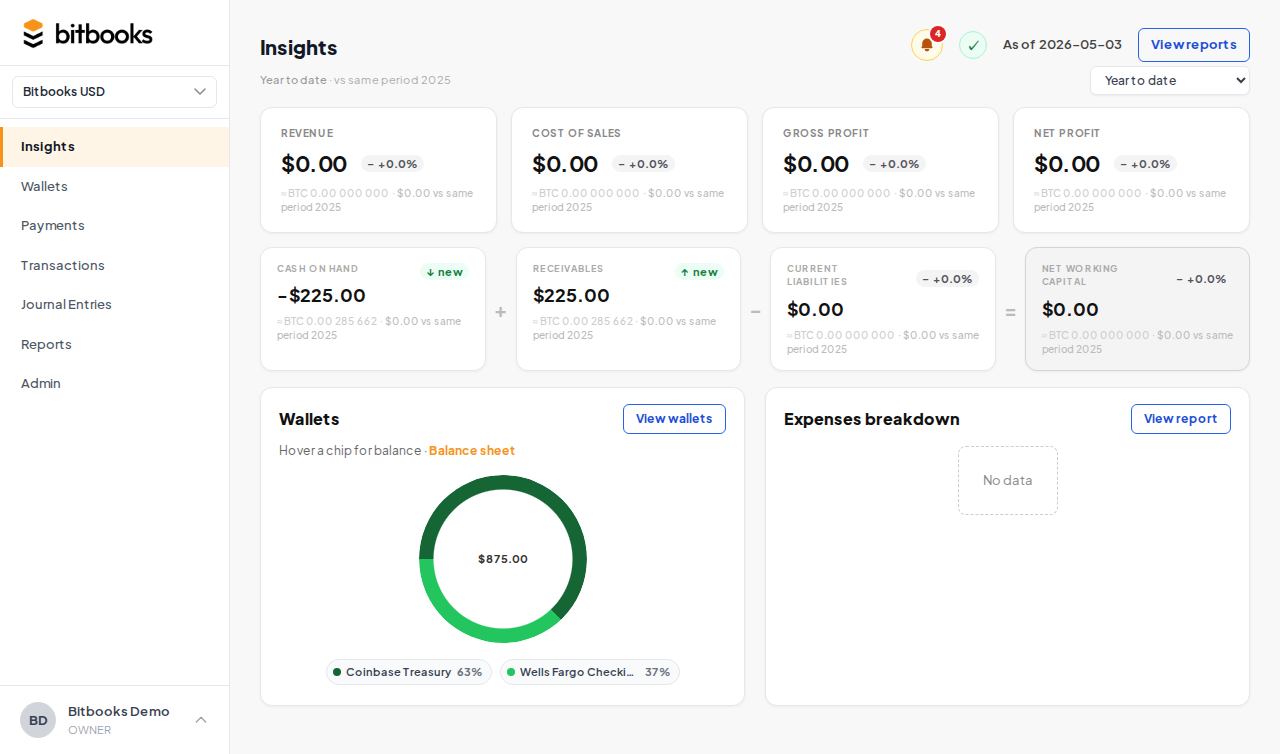
Click to open, click an org name to switch.
When you switch:
- The page reloads with the new org's data
- The Insights page, wallets, transactions, reports all show the new org
- Your role might be different in the new org (Member vs Admin, etc.)
- Settings, contacts, chart of accounts are all the new org's
Switching is fast (a second or two). You can switch as often as you want.
What's shared and what's not
Shared (across all your orgs)
- Your user account (one email, one password, one 2FA setup)
- Your profile (name, avatar)
- Your authenticator and 2FA recovery codes
Per-organization (NOT shared)
- Wallets and balances
- Transactions and journal entries
- Contacts
- Chart of accounts
- Reports
- Settings (functional currency, lock dates, BTC display, etc.)
- Team members
- Bitcoin Connections vault (each org has its own vault password)
So: signing in is a single act, but everything you see after sign-in depends on which organization is active.
Bookkeeper / accountant workflow
If you manage several client books, the typical flow:
- Sign in once
- Switcher dropdown shows: Client A, Client B, Client C, Your Company
- Pick a client to work in
- Do their bookkeeping (enter transactions, reconcile, run reports)
- Switch to next client
- Repeat
Each client's data is fully isolated. You can't accidentally enter Client B's transaction in Client A's books because the active org gates everything.
Cross-organization views
A few things you can do that span organizations:
Bulk-invite to all orgs
When inviting a user who should access multiple orgs (e.g., your bookkeeper who handles all your businesses), the invite form has an option Add to all my current organizations. Tick it; the user is invited to every org you own with the same role. Saves several invitation rounds.
Multi-org reporting (future)
Cross-org consolidated reports (e.g., "show me total revenue across all my orgs") aren't a feature today. You'd run reports per org and combine in a spreadsheet.
A roadmap item: explicit consolidation. For now, single-org reporting only.
Archiving an organization
If you stop using an org (business closed, client relationship ended):
- Admin → Organizations
- Click the org
- Click Archive
Archived orgs:
- Disappear from your switcher dropdown by default
- All data preserved
- Restorable any time
- Can be permanently deleted from the archived state if you're sure
To see archived orgs, toggle Show archived on the Organizations page.
Deleting an organization
Permanent removal. Available only to the Owner of the org. From the org's settings page:
- Scroll to the danger zone
- Click Delete Organization
- Confirm by typing the org's name
After deletion:
- All data is gone (wallets, transactions, journal entries, contacts, reports)
- Audit logs may be retained for a brief period as backup
- Cannot be undone
Use only when you're absolutely certain. Most cases call for archiving instead, which preserves data and keeps your option open.
Common questions
"Can I have unlimited organizations?"
Practically yes. There's no hard cap on the number of orgs per account. If you have hundreds, performance might lag in some views; talk to support if that happens.
"Can I move data from one organization to another?"
Not in the current UI. Each org is fully isolated. To "move" something, you'd export from one (e.g., to Excel) and import to the other.
"What if a client wants to take over their org from me?"
Transfer ownership. From the client's org → Admin → Users → click yourself → Transfer Ownership to the client (assuming they have an Admin or higher role). After transfer, you're no longer Owner; the client is.
You can stay on as Admin, Accountant, or whatever role they want, or be removed entirely.
"Can I pre-create organizations for clients before they sign up?"
Yes. Create the org under your account, configure the basics, then invite the client as Owner. They get the magic link, sign in, and become the principal of their org.
Where to go next
- Setting Up Your First Organization for the org creation walkthrough
- Inviting Team Members for adding users to an org
- User Roles for the role distinctions
- Organization Settings Overview for per-org configuration