Three places to check daily
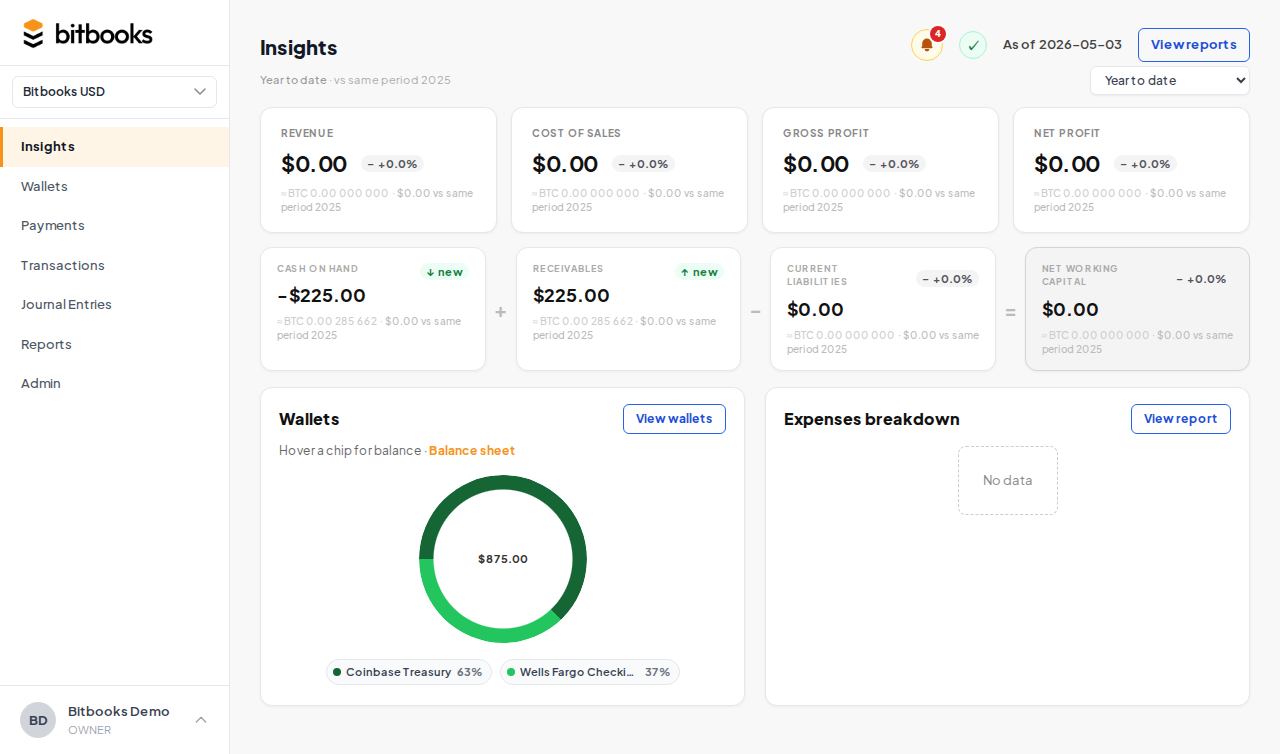
The top-right of the Insights page has three icons that surface things you should look at:
- Notifications bell. New activity that may need attention.
- Ledger health icon. Whether your books are internally consistent.
- Activity link. Quick jump to the Activity Log report.
Together they answer: "Anything I should care about right now?"
The notifications bell
Click the bell to see recent activity that touched your work:
- New transactions imported by an auto-sync
- Transactions posted by other team members
- Period close events
- Payment requests waiting for your approval (if you're an approver)
- FX revaluation runs completed
- Errors or warnings from connectors
Each notification shows what happened, when, and (where relevant) by whom. Click a notification to jump to the entity it's about.
Notifications are organization-scoped. If you have access to several organizations, switch organizations to see that one's notifications.
A red dot on the bell means there are unread notifications. Once you click the bell to view them, the dot goes away.
The ledger health icon
A traffic-light status. Tells you in one glance whether your books are internally consistent.
- Green check. Trial Balance is balanced. Debits = credits across all your books. Everything looks healthy.
- Yellow warning. Mostly fine but something needs attention. Examples: pending exchange rates that haven't resolved, a sync error on a wallet, recent reversal activity.
- Red error. Trial Balance is off. Debits don't equal credits. Something is broken at a deeper level. Investigate immediately.
Click the icon to see the underlying detail (which check is failing, which entity is involved, what to do).
A red ledger health icon should be rare. If you see one, the right move is:
- Run the Trial Balance report
- Look at the Activity Log for recent changes
- Contact support if you can't identify the cause
Don't try to "fix" the number directly. Investigate the cause.
The activity log
The Activity Log is a full audit trail of every meaningful action in your organization. Who did what, when, and to which entity.
Activities tracked:
- Created an entity (transaction, journal entry, wallet, account, contact, etc.)
- Updated an entity (changed any field)
- Deleted an entity (rare, only Drafts)
- Archived an entity (soft-deleted)
- Approved a payment request or journal entry
- Reversed a posted entry
- Posted a Draft
Each activity row shows: timestamp, user, action, entity type, entity ID, and (where relevant) what specifically changed.
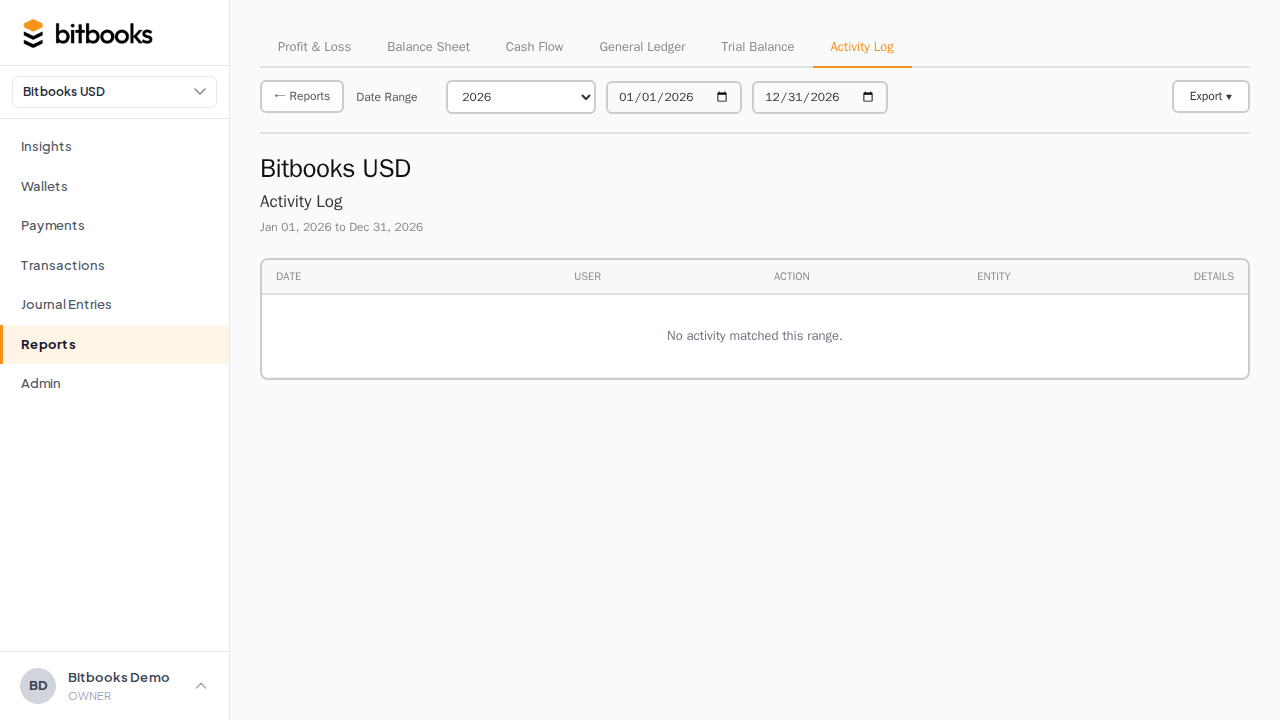
Access the full Activity Log from Reports → Activity Log. Or click the activity link in the Insights header to jump straight there.
Filtering the activity log
The full report supports filtering:
- By user. "Show me everything Brandon did this week."
- By entity type. "Show me only transaction-related activity."
- By specific entity. "Show me everything that ever happened to journal entry JE-000142."
- By date range. Last 24 hours, last week, custom.
Useful when investigating a specific issue or doing a periodic review.
Notifications vs Activity Log
What's the difference?
- Notifications are what's new since you last looked. Curated, time-limited, focused on what may need your attention.
- Activity Log is the complete history. Everything that ever happened, queryable, persistent.
Notifications fade as you view them. The Activity Log doesn't. If you want to find what happened three weeks ago, use the Log.
Common questions
"Why is my ledger health icon yellow?"
Most common reasons:
- Pending exchange rates (BitBooks couldn't fetch a rate for a transaction; you need to resolve them)
- A wallet sync error (a connection failed; reconnect or retry)
- Recent reversal activity (informational, usually nothing to fix)
Click the icon for the specific reason.
"Notifications stopped showing. Bug?"
If the bell never has notifications and you have multiple users, it might be that no one's done anything recently. Go to the Activity Log to confirm. If there's recent activity but no notifications, that's a bug worth reporting.
"Can I get notifications by email?"
Some events email you (e.g., a payment request needing your approval). Most don't. Email notifications for everything would be too noisy; they're concentrated on things that need a response.
"Can I clear notifications without reading them?"
Yes, click the "Mark all read" link in the notifications dropdown.
Where to go next
- Activity Log for the deeper report-level view
- Trial Balance if your ledger health is red
- Understanding Your Insights Page for the full dashboard
- Audit Log (same as Activity Log, for accountants and auditors)