How to recognize the problem
Signs that auto-sync is broken:
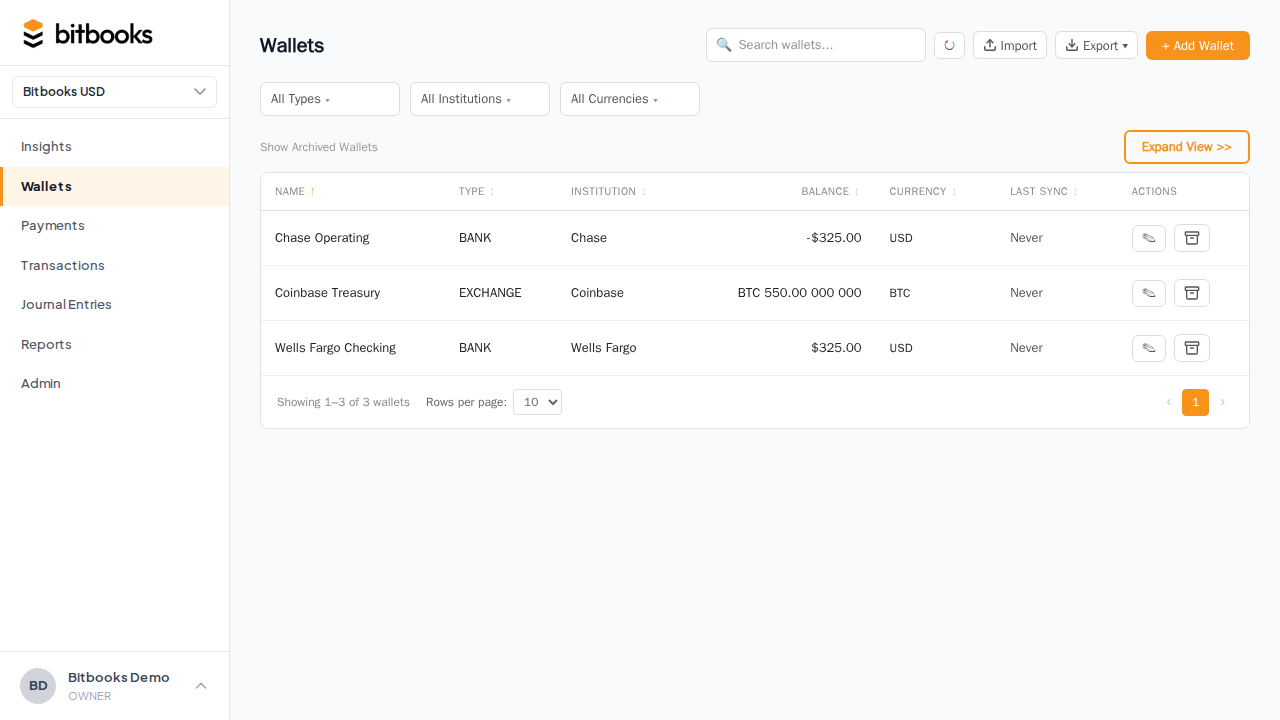
- The wallet's status shows Error on the Wallets page (instead of Synced)
- New transactions at the wallet provider aren't showing up in BitBooks
- The "Last synced" timestamp is days old when you expect minutes
- A red dot or warning icon next to the wallet name
Step 1: trigger a manual sync
Sometimes a transient error resolves itself:
- Open the wallet (click its name in the Wallets list)
- Click Sync Now
- Wait a few seconds
If it succeeds: the status changes to Synced, recent transactions show up. You're done.
If it fails again: continue diagnostic steps.
Step 2: check the error message
The wallet detail page usually shows a message describing the failure. Common ones:
| Error message | What it means |
|---|---|
| "Authentication failed" | Your provider credentials are no longer valid |
| "Connection timed out" | Provider's API is slow or unreachable |
| "Rate limit exceeded" | We're being throttled by the provider; will recover automatically |
| "Provider not found" | Service-side issue (rare) |
For "Authentication failed," go to Step 3.
For others, wait an hour and retry (Step 1). Most resolve themselves.
Step 3: reconnect the wallet (for auth errors)
If credentials at the provider have changed (you rotated your password, the provider invalidated a session), the connection needs refreshing.
- Go to Admin → Connectors
- Click the wallet
- Click Reconnect (or Disconnect, then re-add via Add Connection)
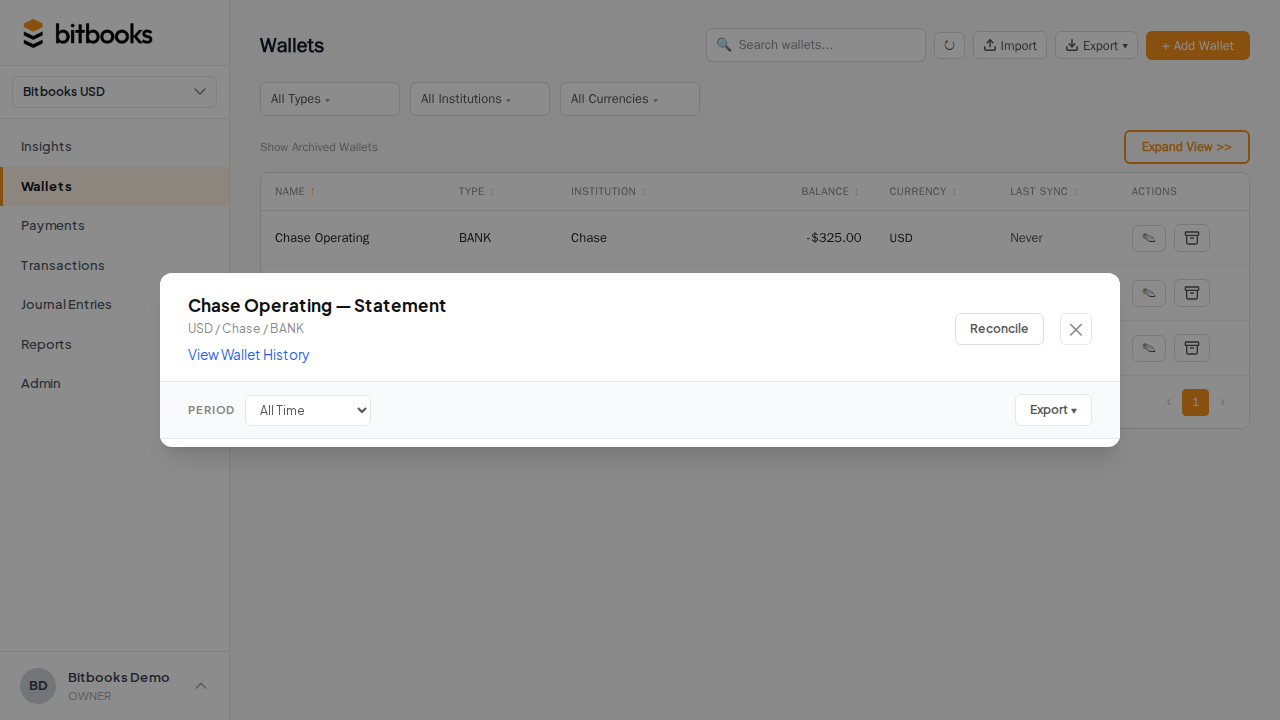
The flow:
- BitBooks asks for your vault password (to unlock the existing credentials slot)
- You sign in to the wallet provider (fresh auth)
- BitBooks updates the stored credentials
- Sync resumes
After reconnecting, click Sync Now to verify it works.
Step 4: check the provider directly
Sometimes the issue is at the provider's end:
- Sign in to your wallet provider (Blink, Coinbase, etc.) directly
- Confirm your account is active
- Confirm your transactions are visible there
- Check the provider's status page for outages
If the provider has an outage, BitBooks can't sync until they're back. Wait it out.
If your account is locked or suspended at the provider, you'll need to resolve that first.
Step 5: check the credential vault
The Bitcoin Connections vault holds your provider credentials. If something is wrong with the vault (rare), you might need to reset.
Symptoms:
- Reconnecting doesn't help
- Multiple wallets connected via the same vault all fail
- The "Forgot password?" or vault-related screens appear unexpectedly
The fix: from Admin → Connectors, look for "Reset vault" (this disconnects all wallets and clears the vault; you'll reconnect each one fresh). See The Bitcoin Connections System.
This is rarely needed. Most sync issues are at the individual-wallet level.
Step 6: contact support
If you've worked through Steps 1-5 and sync is still broken:
Send to support:
- The wallet name
- The error message (screenshot if possible)
- When sync last worked (approximate)
- Steps you've tried
Most issues are resolvable. Some require backend changes (e.g., a provider API change we need to adapt to). Either way, we'll dig in.
What to do while sync is broken
You don't have to stop working:
- Enter transactions manually for the broken wallet. Use Simple Mode (Transactions → New Transaction). You're effectively running it as a manual wallet temporarily.
- Don't dispose of transactions at the provider that BitBooks hasn't yet captured. They'll auto-import later when sync is restored.
- Note the disruption in your records (a quick log of "sync broken Mar 15 to Mar 20" so you can re-verify later).
When sync is restored, BitBooks should pull in any missed transactions. Reconciliation at month-end will surface anything that didn't import.
What auto-sync handles vs doesn't handle
It's worth knowing what auto-sync covers:
Handles automatically
- New transactions appearing at the provider
- Updates to confirmation status
- Balance refreshes
Does NOT handle automatically
- Provider API breaking changes (we adapt manually)
- Provider account suspensions (need your action)
- Cross-account transfers within the provider (some providers)
- Old transactions from before the connection date (you'd manually import these)
For the things sync doesn't handle, manual entry or CSV import is the workaround.
A worked example
Monday morning. You open BitBooks. The Blink wallet shows Error.
Step 1: click Sync Now. It fails after 5 seconds with "Authentication failed."
You remember: you changed your Blink password last night.
Step 3: go to Admin → Connectors. Click Blink wallet. Click Reconnect. BitBooks asks your vault password. You enter. The Blink sign-in popup opens. You sign in with your new password. The popup closes.
You click Sync Now. Status changes to Synced. The 12 transactions from the weekend now appear in BitBooks as Drafts.
Total time: 3 minutes. Routine.
Common questions
"How often does sync run?"
Every few hours by default. Click Sync Now any time for an immediate refresh.
"What if I disconnect and reconnect a wallet, will I lose history?"
No. Disconnecting only ends the live link. Historical transactions stay. When you reconnect (using "Attach to existing wallet"), you re-link to the same wallet without losing anything.
"Will reconnecting create duplicate transactions?"
Auto-sync deduplicates by the provider's transaction ID. So a transaction that was imported before, and is in the provider's history again, won't be re-created. You're safe.
Where to go next
- How Auto-Sync Works for the sync mechanics
- The Bitcoin Connections System for the credential vault details
- Disconnecting or Re-syncing a Connected Wallet for the disconnect/reconnect flow
- Connecting Your Bitcoin Wallet for the full setup