The big picture
BitBooks has a left sidebar for navigation, an organization switcher at the top, and a main area for the page you're on. Same as Gmail, Slack, or any modern web app. Once you know the seven sections, you know the whole app.
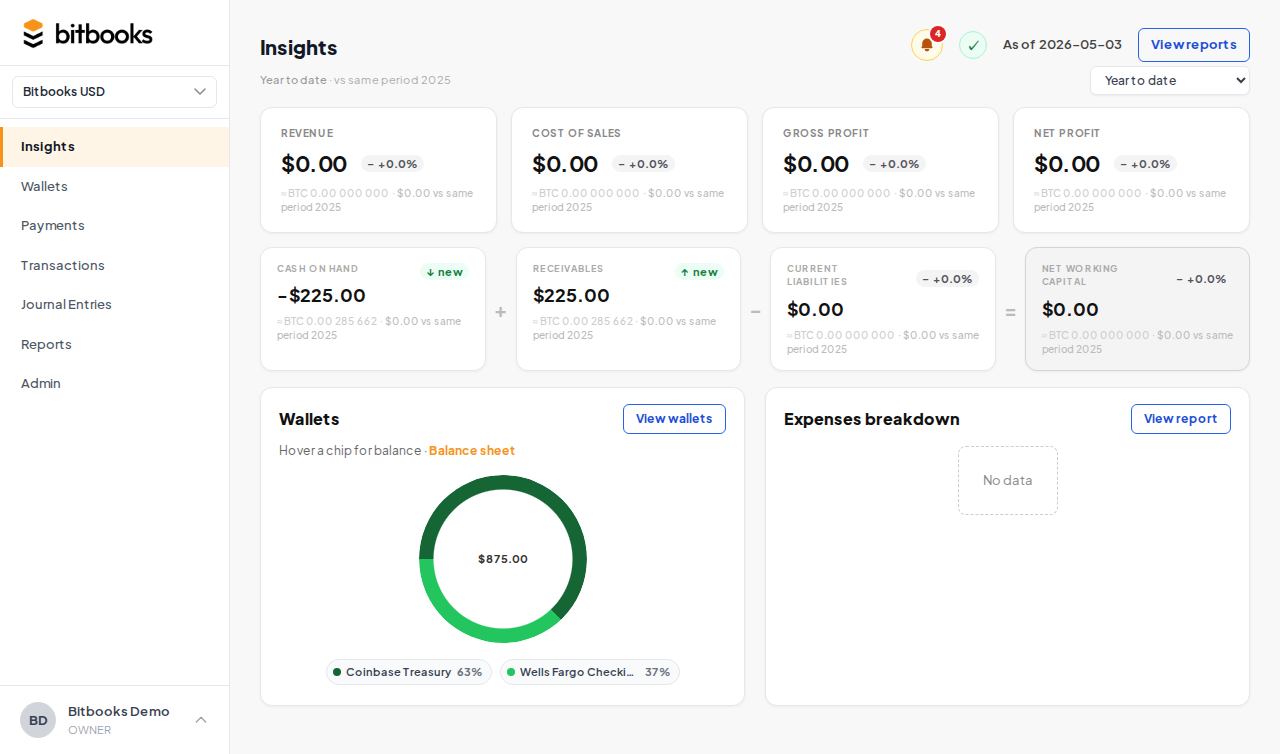
The sidebar (seven sections)
| Section | What's here |
|---|---|
| Insights | The dashboard. KPIs, working capital, wallet snapshot, expense breakdown. |
| Wallets | All your wallets and bank accounts. Balance, sync status, history. |
| Payments | Payment requests (invoices and bills) with approval workflow. |
| Transactions | Day-to-day transactions. Simple Mode entry. |
| Journal Entries | Advanced Mode entries. The accountant's view. |
| Reports | P&L, Balance Sheet, Trial Balance, General Ledger, Cash Flow, Activity Log. |
| Admin | Settings, users, chart of accounts, contacts, connectors. |
Click any section to open it. The current section is highlighted.
Organization switcher
Top of the sidebar. A dropdown showing every organization you have access to.
If you only have one organization, the dropdown shows just that name. If you manage multiple (e.g., you're a bookkeeper with several clients), pick the one you want to work in.
Switching organizations changes everything: the wallets you see, the transactions, the reports, the team members. You're now operating inside that org.
Insights (the dashboard)
The default landing page. Read Understanding Your Insights Page for the full breakdown.
Quick version:
- KPIs at the top: revenue, cost of sales, gross profit, net profit
- Working capital row: cash, receivables, current liabilities
- Wallet snapshot: top wallets and their balances
- Expense breakdown: donut chart of where money is going
Wallets
Lists every wallet (Bitcoin or fiat) in the organization. For each wallet you see name, currency, current balance, sync status.
Click a wallet to open its detail page: full transaction history, opening balance, sync controls, statement, reconcile.
This is also where you go to manually create a new wallet or trigger a sync.
Payments
Manages payment requests. Two flavors:
- Invoices you've issued to customers (waiting to be paid)
- Bills you've received from vendors (waiting to be paid)
Each request has a status: Draft, Pending, Approved, Rejected, On Hold, Paid, Cancelled. The full approval workflow lives here.
For one-off transactions where there's no formal request, skip Payments and use Transactions directly.
Transactions
Simple Mode entry. The everyday tool for recording what happened.
Each row is one transaction: date, wallet, amount, contact, category, memo, status. Click any row to view or edit. Click New Transaction to create.
This is where most users spend most of their time.
Journal Entries
Advanced Mode entry. For accountants and bookkeepers who want to write the underlying debits and credits directly.
Same workflow as Transactions, but you control every line of every entry. Useful for adjustments, depreciation, accruals, closing entries.
If you're not sure whether to use this or Transactions, use Transactions. They produce the same results; Transactions is just easier.
Reports
Where you produce financial statements. Tabs across the top:
- Profit & Loss (P&L)
- Balance Sheet
- Cash Flow
- Trial Balance
- General Ledger (and per-account detail)
- Activity Log
Pick the report, pick the date range, the report renders. Export to PDF or Excel.
Admin
Every configuration option lives here. Tabs:
- Settings. Organization-level: currencies, frameworks, BTC display, lock dates, time zones, formats.
- Users. Invite, remove, change roles.
- Organizations. Switch, archive, create new orgs.
- Chart of Accounts. The accounts list. Add, edit, archive.
- Contacts. Customers, vendors, employees, others.
- Connectors. Bitcoin wallet connections (the Bitcoin Connections feature).
- Categories (the "To/From" list, used in some flows).
If something feels missing, it's probably in Admin.
The header
Across the top of every page:
- Page title (e.g., "Insights," "Transactions")
- Notifications bell. Recent activity that may need your attention.
- Ledger health icon. Green if your books are internally consistent. Red if Trial Balance is off.
- As-of date. The date being used for the current page's calculations.
Some pages also have a period selector (Year to Date, Last Month, Custom, etc.) and a search/filter bar.
Mobile
BitBooks works on phones and tablets. The sidebar collapses into a hamburger menu. The pages reflow. Most things you can do on desktop you can do on mobile, just with smaller buttons.
For heavy bookkeeping, desktop is faster. For checking numbers on the go, mobile is fine.
Where to go next
- Understanding Your Insights Page for the dashboard deep dive
- Wallets overview for the wallet list
- Reports overview for the financial statements
- Admin Settings for organization-level configuration